Email Notifications Notifications par email E-Mail-Benachrichtigungen Notificaciones por correo electrónico Notificações por email Notifiche email התראות אימייל
SMTP Configuration Configuration SMTP SMTP-Konfiguration Configuración SMTP Configuração SMTP Configurazione SMTP הגדרות SMTP
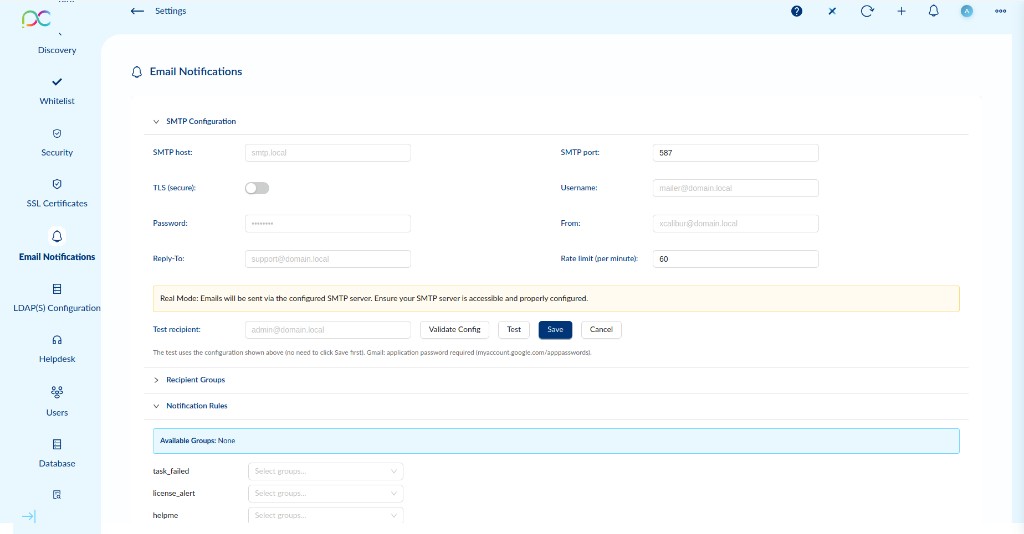
Access via Settings → Email Notifications. Configure the SMTP server used by Xcalibur to send automated email alerts for events such as failed tasks, license alerts, helpdesk requests, and system alerts.
SMTP Fields
| Field | Description | Example |
|---|---|---|
| SMTP host | Hostname or IP address of your outgoing mail server. | smtp.local |
| SMTP port | TCP port for the SMTP connection. Common values: 25 (plain), 587 (STARTTLS), 465 (SSL/TLS). |
587 |
| TLS (secure) | Enable TLS/STARTTLS encryption for the SMTP connection. Required by most modern mail servers. | Toggle |
| Username | Authentication username for the SMTP server. | [email protected] |
| Password | Authentication password for the SMTP server. For Gmail, use an App Password from myaccount.google.com/apppasswords. | •••••• |
| From | The sender email address that will appear in the From field of outgoing notifications. | [email protected] |
| Reply-To | Optional address where replies to notification emails will be directed. | [email protected] |
| Rate limit (per minute) | Maximum number of emails Xcalibur can send per minute. Prevents spam bursts. Default: 60. |
60 |
Testing the Configuration
Before saving, verify the SMTP settings work correctly:
- Enter a Test recipient email address (e.g.
[email protected]). - Click Validate Config to check the configuration format without sending an email.
- Click Test to send a real test email using the current settings (no need to click Save first).
- Click Save to persist the configuration, or Cancel to discard changes.
Accédez via Paramètres → Notifications email. Configurez le serveur SMTP utilisé par Xcalibur pour envoyer des alertes email automatiques.
Champs SMTP
| Champ | Description | Exemple |
|---|---|---|
| SMTP host | Nom d'hôte ou IP du serveur de messagerie sortant. | smtp.local |
| SMTP port | Port TCP pour la connexion SMTP. Valeurs courantes : 25 (plain), 587 (STARTTLS), 465 (SSL/TLS). | 587 |
| TLS (secure) | Activer le chiffrement TLS/STARTTLS pour la connexion SMTP. | Toggle |
| Username | Nom d'utilisateur d'authentification SMTP. | [email protected] |
| Password | Mot de passe d'authentification SMTP. Pour Gmail, utilisez un mot de passe d'application. | •••••• |
| From | Adresse expéditeur qui apparaîtra dans le champ From des notifications. | [email protected] |
| Reply-To | Adresse optionnelle vers laquelle les réponses aux emails de notification seront dirigées. | [email protected] |
| Rate limit (per minute) | Nombre maximum d'emails par minute. Défaut : 60. | 60 |
Tester la configuration
- Saisissez un Test recipient (ex.
[email protected]). - Cliquez Validate Config pour vérifier le format sans envoyer d'email.
- Cliquez Test pour envoyer un email de test réel (sans cliquer sur Save d'abord).
- Cliquez Save pour enregistrer, ou Cancel pour annuler.
SMTP-Konfiguration: Host, Port (25/587/465), TLS-Toggle, Benutzername, Passwort (Gmail: App-Passwort), From-Adresse, Reply-To, Rate-Limit (Standard: 60/min). Test über Test-Empfänger: Validate Config prüft Format, Test sendet E-Mail. Speichern zum Übernehmen.
Configuración SMTP: host, puerto (25/587/465), toggle TLS, usuario, contraseña (Gmail: contraseña de app), dirección From, Reply-To, límite de tasa (predeterminado: 60/min). Prueba con destinatario de prueba: Validate Config verifica formato, Test envía correo. Guardar para aplicar.
Configuração SMTP: host, porta (25/587/465), toggle TLS, utilizador, palavra-passe (Gmail: palavra-passe de app), endereço From, Reply-To, limite de taxa (padrão: 60/min). Teste com destinatário de teste: Validate Config verifica formato, Test envia email. Guardar para aplicar.
Configurazione SMTP: host, porta (25/587/465), toggle TLS, nome utente, password (Gmail: password app), indirizzo From, Reply-To, limite di frequenza (default: 60/min). Test con destinatario di test: Validate Config verifica formato, Test invia email. Salvare per applicare.
הגדרות SMTP: מארח, פורט (25/587/465), מתג TLS, שם משתמש, סיסמה (Gmail: סיסמת אפליקציה), כתובת From, Reply-To, הגבלת קצב (ברירת מחדל: 60/דקה). בדיקה עם נמען לבדיקה: Validate Config בודק פורמט, Test שולח אימייל. שמור להחלה.
Recipient Groups Groupes de destinataires Empfängergruppen Grupos de destinatarios Grupos de destinatários Gruppi destinatari קבוצות נמענים
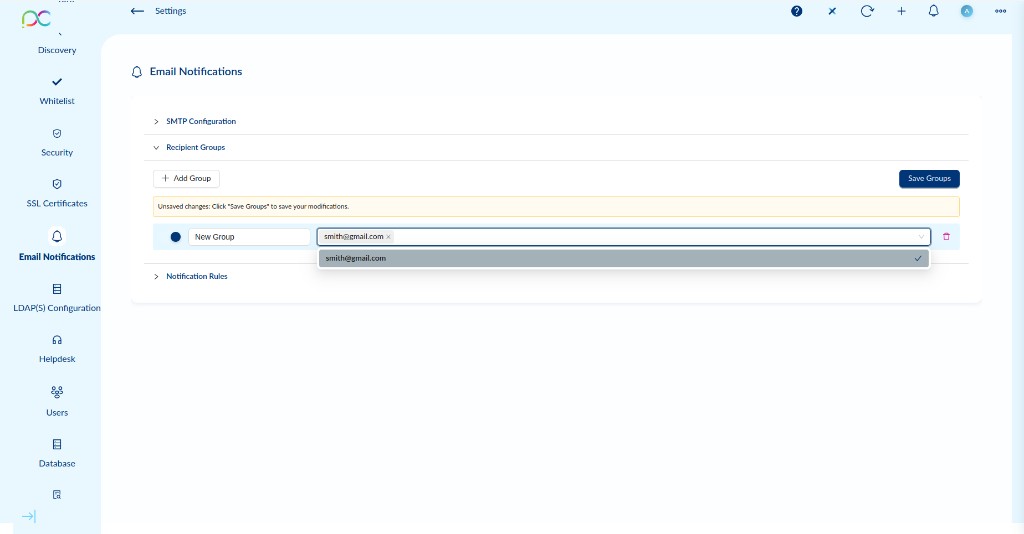
Recipient Groups let you define named lists of email addresses. Each group can then be assigned to one or more notification rules, so the right people are alerted for each event type.
Managing Groups
| Action | Description |
|---|---|
| + Add Group | Creates a new recipient group. Enter a group name and add email addresses using the tag input field. |
| Email tag input | Type an email address and press Enter or select from the dropdown to add it to the group. Multiple addresses can be added as tags. |
| Delete (trash icon) | Removes the group entirely. |
| Save Groups | Persists all group changes. A warning banner appears if there are unsaved modifications. |
Les groupes de destinataires permettent de définir des listes nommées d'adresses email, ensuite assignables aux règles de notification.
| Action | Description |
|---|---|
| + Add Group | Crée un nouveau groupe. Saisissez un nom et ajoutez des adresses email via le champ de saisie de tags. |
| Saisie d'email tag | Tapez une adresse email et appuyez sur Entrée ou sélectionnez dans la liste déroulante pour l'ajouter au groupe. |
| Supprimer (icône poubelle) | Supprime entièrement le groupe. |
| Save Groups | Enregistre toutes les modifications de groupes. Une bannière d'avertissement apparaît en cas de modifications non sauvegardées. |
Empfängergruppen: benannte E-Mail-Listen. + Add Group → Gruppenname + E-Mail-Adressen per Tag-Eingabe hinzufügen. Papierkorb-Symbol zum Löschen. Save Groups zum Speichern (Warnbanner bei ungespeicherten Änderungen).
Grupos de destinatarios: listas de email con nombre. + Add Group → nombre de grupo + direcciones email via entrada de etiquetas. Icono papelera para eliminar. Save Groups para guardar (banner de advertencia si hay cambios sin guardar).
Grupos de destinatários: listas de email com nome. + Add Group → nome do grupo + endereços email via entrada de tags. Ícone de lixo para eliminar. Save Groups para guardar (banner de aviso se houver alterações não guardadas).
Gruppi destinatari: liste email con nome. + Add Group → nome gruppo + indirizzi email via input tag. Icona cestino per eliminare. Save Groups per salvare (banner di avviso se ci sono modifiche non salvate).
קבוצות נמענים: רשימות אימייל בעלות שם. + Add Group ← שם קבוצה + כתובות אימייל דרך שדה תגיות. סמל סל מחזור למחיקה. Save Groups לשמירה (באנר אזהרה אם יש שינויים שלא נשמרו).
Notification Rules Règles de notification Benachrichtigungsregeln Reglas de notificación Regras de notificação Regole di notifica כללי התראה
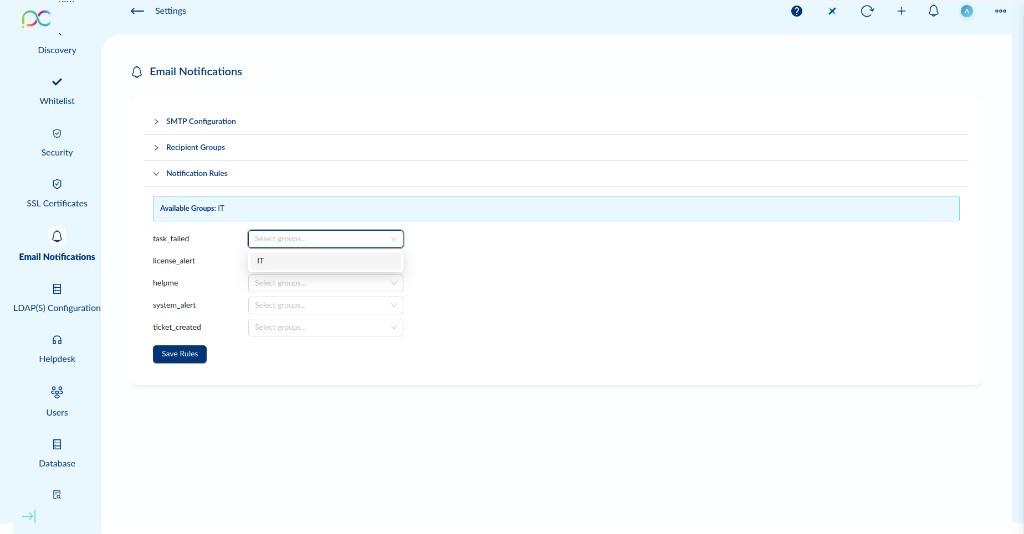
Notification Rules define which recipient groups receive an email when a specific event occurs. Select one or more groups for each event type, then click Save Rules.
The Available Groups banner shows the groups currently defined. Only groups created in the Recipient Groups section appear in the dropdowns.
| Event | When is the notification sent? |
|---|---|
task_failed |
A scheduled or triggered task (deployment, script, configuration push) fails on one or more devices. |
license_alert |
A license limit is approaching or has been exceeded (e.g. agent seat count, expiry warning). |
helpme |
A user clicks the I need help button on their device, creating a helpdesk request. |
system_alert |
A server-level system event requires attention (e.g. service restart, critical error). |
ticket_created |
A new helpdesk ticket is created in the system. |
Workflow Example
- Create a group named IT with email addresses in Recipient Groups → click Save Groups.
- In Notification Rules, select IT for
task_failedandsystem_alert. - Click Save Rules.
- From now on, whenever a task fails or a system alert fires, all members of the IT group receive an email.
Les règles de notification définissent quels groupes de destinataires reçoivent un email lors d'un événement spécifique. Sélectionnez un ou plusieurs groupes par type d'événement, puis cliquez sur Save Rules.
| Événement | Quand la notification est-elle envoyée ? |
|---|---|
task_failed | Une tâche planifiée ou déclenchée échoue sur un ou plusieurs appareils. |
license_alert | Une limite de licence approche ou a été dépassée. |
helpme | Un utilisateur clique sur I need help sur son appareil, créant une demande d'assistance. |
system_alert | Un événement système au niveau serveur nécessite une attention. |
ticket_created | Un nouveau ticket helpdesk est créé dans le système. |
Exemple de workflow
- Créez un groupe IT dans Recipient Groups → cliquez Save Groups.
- Dans Notification Rules, sélectionnez IT pour
task_failedetsystem_alert. - Cliquez Save Rules.
- Désormais, chaque fois qu'une tâche échoue ou qu'une alerte système se déclenche, tous les membres du groupe IT reçoivent un email.
Benachrichtigungsregeln: Ereignistypen Empfängergruppen zuweisen. Ereignisse: task_failed (Aufgabe fehlgeschlagen), license_alert (Lizenzlimit), helpme (Hilfe-Anfrage), system_alert (Server-Ereignis), ticket_created (neues Ticket). Mehrere Gruppen pro Ereignis möglich. Save Rules speichern.
Reglas de notificación: asignar grupos de destinatarios a tipos de eventos. Eventos: task_failed (tarea fallida), license_alert (límite de licencia), helpme (solicitud de ayuda), system_alert (evento de servidor), ticket_created (nuevo ticket). Múltiples grupos por evento posibles. Save Rules para guardar.
Regras de notificação: atribuir grupos de destinatários a tipos de eventos. Eventos: task_failed (tarefa falhada), license_alert (limite de licença), helpme (pedido de ajuda), system_alert (evento de servidor), ticket_created (novo ticket). Múltiplos grupos por evento possíveis. Save Rules para guardar.
Regole di notifica: assegnare gruppi destinatari ai tipi di eventi. Eventi: task_failed (attività fallita), license_alert (limite licenza), helpme (richiesta aiuto), system_alert (evento server), ticket_created (nuovo ticket). Più gruppi per evento possibili. Save Rules per salvare.
כללי התראה: שיוך קבוצות נמענים לסוגי אירועים. אירועים: task_failed (משימה נכשלה), license_alert (הגבלת רישיון), helpme (בקשת עזרה), system_alert (אירוע שרת), ticket_created (כרטיס חדש). ניתן להשיות מספר קבוצות לאירוע אחד. Save Rules לשמירה.