LDAP(S) / Active Directory Configuration Configuration LDAP(S) / Active Directory LDAP(S) / Active Directory Konfiguration Configuración LDAP(S) / Active Directory Configuração LDAP(S) / Active Directory Configurazione LDAP(S) / Active Directory הגדרות LDAP(S) / Active Directory
LDAP / Active Directory Integration Intégration LDAP / Active Directory LDAP / Active Directory Integration Integración LDAP / Active Directory Integração LDAP / Active Directory Integrazione LDAP / Active Directory אינטגרציה עם LDAP / Active Directory
Go to Settings → LDAP(S) Configuration to connect Xcalibur to an Active Directory or LDAP server. Connection is optional — without it, you can still create groups manually and assign devices by IP or user. The configuration page has four tabs:
Tab 1 — Connection
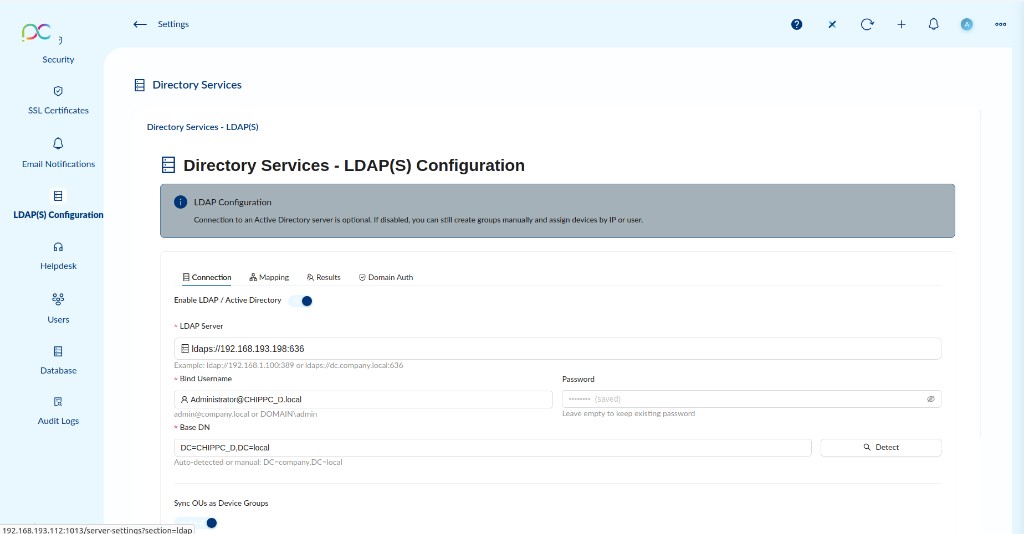
- Enable LDAP / Active Directory — Toggle to activate the integration.
- LDAP Server — URL of the server, e.g.
ldaps://192.168.193.198:636orldap://dc.company.local:389. - Bind Username — Service account for directory queries (e.g.
[email protected]orDOMAIN\admin). - Password — Leave empty to keep the existing saved password.
- Base DN — Root path for user search (e.g.
DC=CHIPPC,DC=local). Click Detect to auto-fill from the server. - Sync OUs as Device Groups — Synchronises Active Directory Organisational Units to device groups in the Devices page.
Click Save, then Test Connection to verify. Use Synchronize Now to trigger an immediate sync.
ldaps:// (port 636) in production to encrypt LDAP traffic. Plain ldap:// (port 389) transmits credentials in clear text.
Tab 2 — Mapping
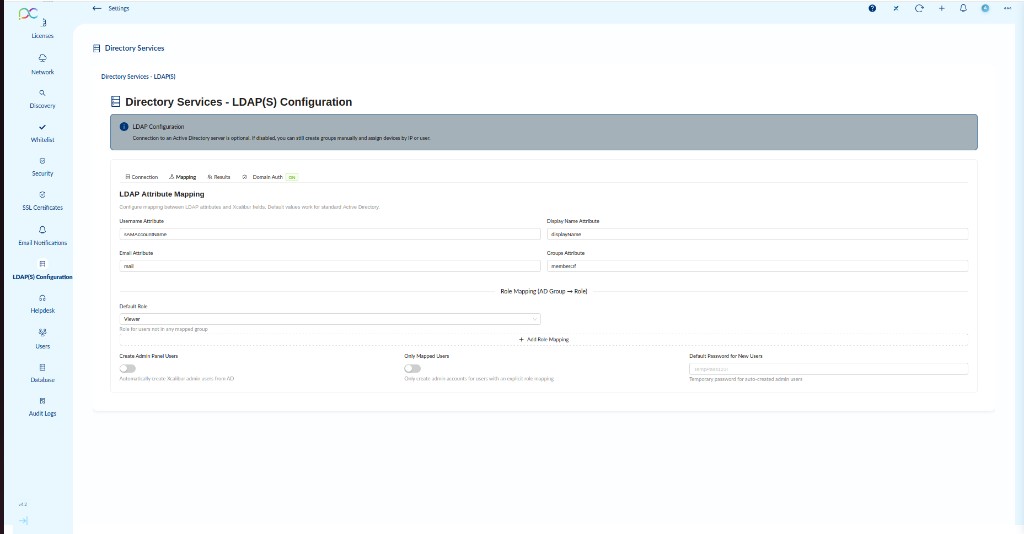
- Username Attribute — LDAP attribute used as login name (default:
sAMAccountName). - Display Name Attribute — Shown in the admin panel (default:
displayName). - Email Attribute — Used for notifications (default:
mail). - Groups Attribute — Attribute that lists group membership (default:
memberOf). - Role Mapping (AD Group → Role) — Map specific AD groups to Xcalibur roles (Admin, Operator, Viewer…). Click + Add Role Mapping to add entries.
- Default Role — Role assigned to users not matched by any mapping rule (default: Viewer).
- Create Admin Panel Users — Automatically create Xcalibur admin accounts from AD.
- Only Mapped Users — Only allow admin access for users with an explicit role mapping.
- Default Password for New Users — Temporary password for auto-created admin users.
Tab 3 — Results
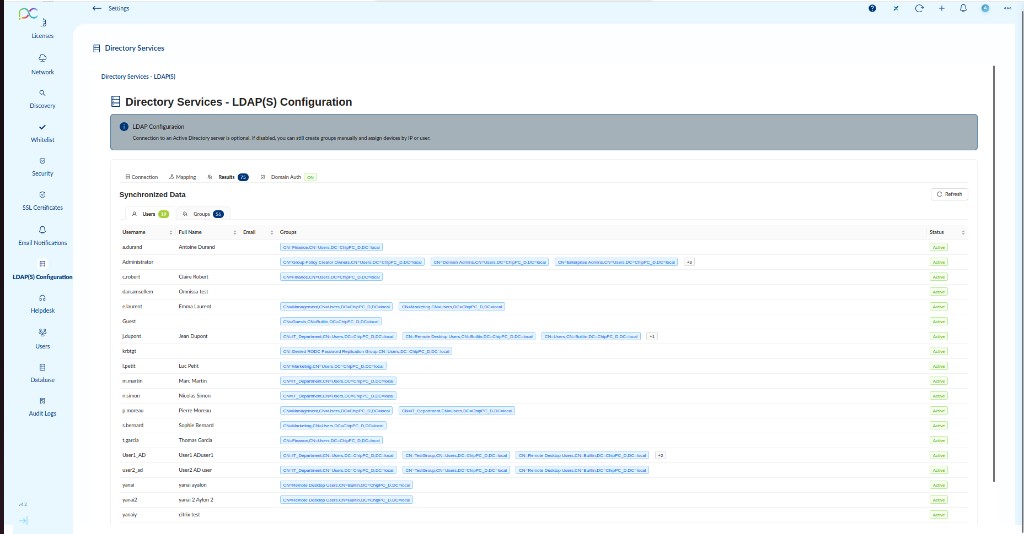
The Results tab shows all data imported from the directory after the last sync, split into two sub-tabs:
- Users — Lists every synced user with their full name, email, group memberships, and status (Active / Inactive). Use this to verify that the correct accounts are being imported.
- Groups — Lists all AD groups that were synchronised. Click Refresh to re-read from the server.
Tab 4 — Domain Auth
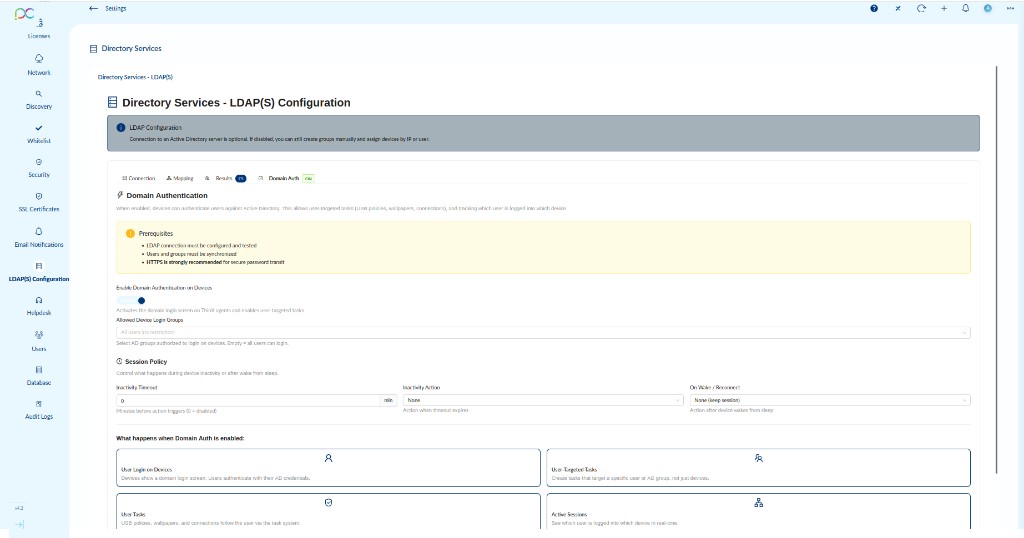
- LDAP connection must be configured and tested
- Users and groups must be synchronised
- HTTPS is strongly recommended for secure password transit
Enable Domain Authentication on Devices — When active, thin clients show a domain login screen; users authenticate with their AD credentials instead of a local account.
- Allowed Device Login Groups — Select which AD groups are authorised to log in on devices. Leave empty to allow all users.
- Session Policy
- Inactivity Timeout — Minutes before the inactivity action is triggered (0 = disabled).
- Inactivity Action — What happens when the timeout fires (e.g. Lock, Disconnect).
- On Wake / Reconnect — Action after the device wakes from sleep.
When Domain Auth is enabled, the following features become available:
- User Login on Devices — Domain login screen on the thin client.
- User-Targeted Tasks — Tasks can target a specific AD user or group, not just a device.
- Use Tasks — USB policies, wallpapers, and connections follow the user via the task system.
- Active Sessions — See which user is logged into which device in real time.
Allez dans Paramètres → Configuration LDAP(S) pour connecter Xcalibur à un serveur Active Directory ou LDAP. La connexion est optionnelle. La page de configuration comporte quatre onglets :
Onglet 1 — Connection
- Enable LDAP / Active Directory — Bascule pour activer l'intégration.
- LDAP Server — URL du serveur, ex.
ldaps://192.168.193.198:636. - Bind Username — Compte de service pour les requêtes d'annuaire.
- Password — Laisser vide pour conserver le mot de passe enregistré.
- Base DN — Chemin racine pour la recherche (ex.
DC=CHIPPC,DC=local). Cliquez sur Detect pour remplir automatiquement. - Sync OUs as Device Groups — Synchronise les Unités d'Organisation AD comme groupes d'appareils.
Cliquez sur Save, puis Test Connection pour vérifier. Synchronize Now déclenche une synchronisation immédiate.
ldaps:// (port 636) en production. Le ldap:// simple transmet les identifiants en clair.
Onglet 2 — Mapping
- Username Attribute — Attribut LDAP utilisé comme identifiant (défaut :
sAMAccountName). - Display Name Attribute — Nom affiché dans le panneau admin (défaut :
displayName). - Email Attribute — Pour les notifications (défaut :
mail). - Groups Attribute — Attribut listant les appartenances aux groupes (défaut :
memberOf). - Role Mapping (Groupe AD → Rôle) — Associez des groupes AD à des rôles Xcalibur. Cliquez sur + Add Role Mapping.
- Default Role — Rôle attribué aux utilisateurs sans correspondance (défaut : Viewer).
- Create Admin Panel Users — Crée automatiquement des comptes admin Xcalibur depuis AD.
- Only Mapped Users — Accès admin uniquement pour les utilisateurs avec un mapping de rôle explicite.
Onglet 3 — Results
Affiche toutes les données importées depuis l'annuaire après la dernière synchronisation : sous-onglets Users (nom complet, email, groupes, statut) et Groups. Cliquez sur Refresh pour relire depuis le serveur.
Onglet 4 — Domain Auth
- La connexion LDAP doit être configurée et testée
- Les utilisateurs et groupes doivent être synchronisés
- HTTPS est fortement recommandé pour la sécurité des mots de passe
Enable Domain Authentication on Devices — Les terminaux légers affichent un écran de connexion domaine ; les utilisateurs s'authentifient avec leurs identifiants AD.
- Allowed Device Login Groups — Groupes AD autorisés à se connecter sur les appareils. Vide = tous les utilisateurs.
- Session Policy — Délai d'inactivité, action déclenchée, et comportement au réveil.
Fonctionnalités activées avec Domain Auth : connexion domaine sur les terminaux, tâches ciblant un utilisateur AD, politiques suivant l'utilisateur, sessions actives en temps réel.
Gehen Sie zu Einstellungen → LDAP(S)-Konfiguration. Die vier Tabs: Connection (Server-URL ldaps://host:636, Bind-DN, Base-DN+Detect, OU-Sync), Mapping (Attributzuordnung, Rollenzuordnung AD-Gruppe→Rolle, Standardrolle Viewer), Results (synchronisierte Benutzer und Gruppen), Domain Auth (Domänenanmeldung auf Thin Clients, Inaktivitätsrichtlinie, AD-Gruppen). LDAPS für Produktion empfohlen.
Vaya a Configuración → Configuración LDAP(S). Las cuatro pestañas: Connection (URL ldaps://host:636, Bind DN, Base DN+Detect, sync OU), Mapping (atributos LDAP, mapeo AD→Rol, rol predeterminado Viewer), Results (usuarios y grupos sincronizados), Domain Auth (inicio de sesión de dominio en dispositivos, política de inactividad). LDAPS recomendado para producción.
Aceda a Definições → Configuração LDAP(S). Os quatro separadores: Connection (URL ldaps://host:636, Bind DN, Base DN+Detect, sync OU), Mapping (atributos LDAP, mapeamento AD→Função, função padrão Viewer), Results (utilizadores e grupos sincronizados), Domain Auth (autenticação de domínio nos dispositivos, política de inatividade). LDAPS recomendado para produção.
Andare su Impostazioni → Configurazione LDAP(S). Le quattro schede: Connection (URL ldaps://host:636, Bind DN, Base DN+Detect, sync OU), Mapping (attributi LDAP, mappatura AD→Ruolo, ruolo predefinito Viewer), Results (utenti e gruppi sincronizzati), Domain Auth (autenticazione di dominio sui dispositivi, policy di inattività). LDAPS raccomandato per produzione.
עברו אל הגדרות ← תצורת LDAP(S). ארבע לשוניות: Connection (כתובת ldaps://host:636, Bind DN, Base DN+Detect, סנכרון OU), Mapping (מיפוי תכונות LDAP, מיפוי AD←תפקיד, תפקיד ברירת מחדל Viewer), Results (משתמשים וקבוצות מסונכרנים), Domain Auth (כניסת דומיין במכשירים, מדיניות חוסר פעילות). LDAPS מומלץ לסביבת ייצור.
AD Users — Manage Active Directory Users & Groups AD Users — Gestion des utilisateurs et groupes Active Directory AD Users — Active-Directory-Benutzer und -Gruppen verwalten AD Users — Gestión de usuarios y grupos de Active Directory AD Users — Gerir utilizadores e grupos do Active Directory AD Users — Gestione utenti e gruppi Active Directory AD Users — ניהול משתמשים וקבוצות Active Directory
The AD Users page (accessible from the left sidebar) shows all users and groups imported from Active Directory after LDAP synchronisation. It has two tabs: Users and Groups.
Users tab
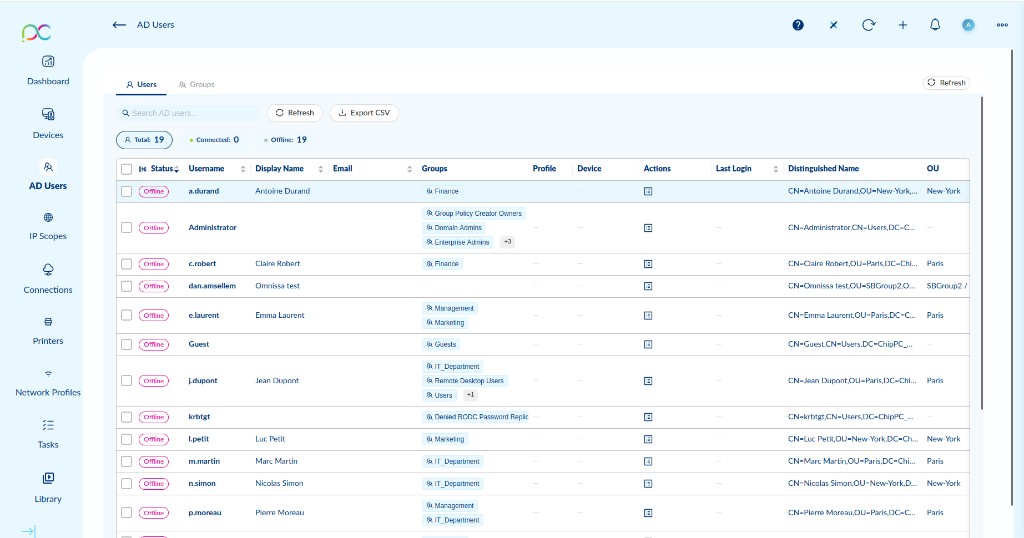
The Users tab lists every synchronised AD account with the following columns:
- Status — Online / Offline (real-time connection state of the user's device).
- Username — AD
sAMAccountName. - Display Name — AD
displayName. - Email — AD
mailattribute. - Groups — AD groups the user belongs to (click +N to see all).
- Profile — Link to the user's Xcalibur profile (if one has been created).
- Device — Device currently or last associated with this user.
- Last Login — Timestamp of the last domain authentication on a device.
- Distinguished Name — Full LDAP path of the account in the directory.
- OU — Organisational Unit the user belongs to.
Use the search bar to filter users. Click Export CSV to export the list. Click Refresh to re-read from the directory.
Groups tab
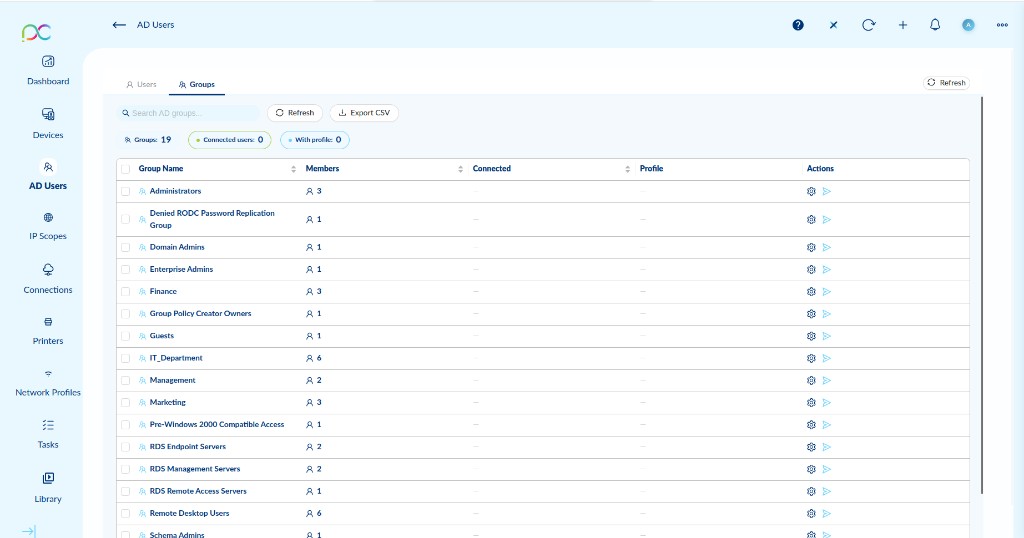
Lists all AD groups imported during sync with:
- Group Name — Name of the AD group.
- Members — Number of users in the group.
- Connected — Number of members currently logged in on a device.
- Profile — Xcalibur profile attached to the group (if any).
- Actions — Open the group settings panel or launch connections.
AD User Profile
Click the profile icon next to a user to open the AD User Profile panel. It has two tabs:
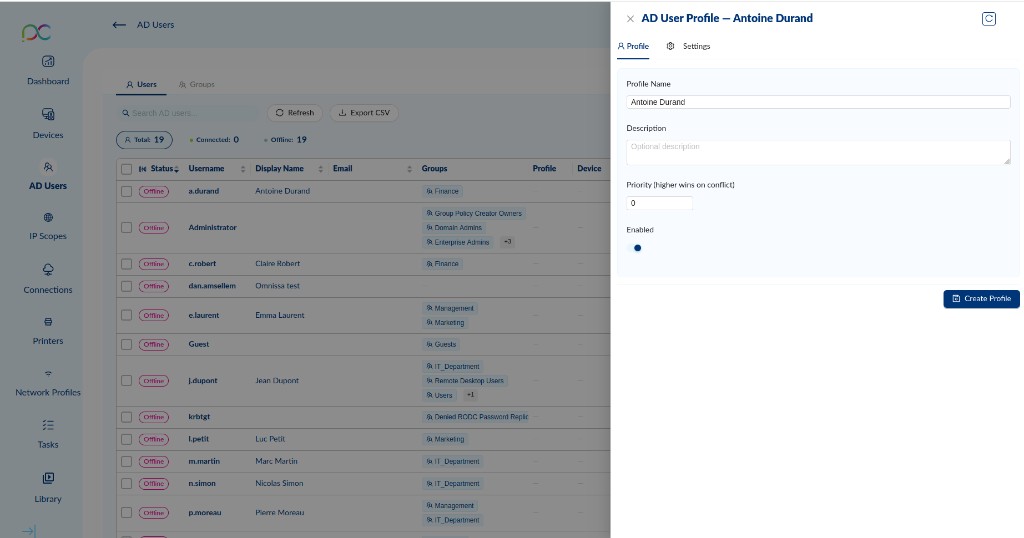
- Profile Name — Name of the profile (pre-filled with the user's display name).
- Description — Optional free-text description.
- Priority — Higher value wins when user and group profiles conflict.
- Enabled — Toggle to activate or suspend the profile.
Click Create Profile to save. Once created, go to the Settings tab:
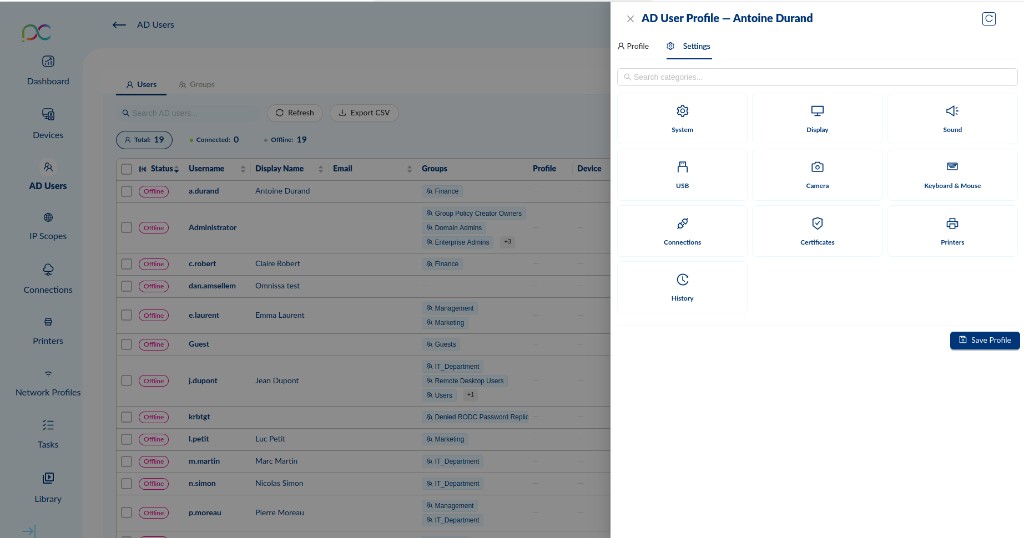
The Settings tab lets you define per-user overrides for: System, Display, Sound, USB, Camera, Keyboard & Mouse, Connections, Certificates, Printers, History. Click Save Profile to push the configuration. These settings follow the user when they log in on any domain-joined device.
AD Group Profile
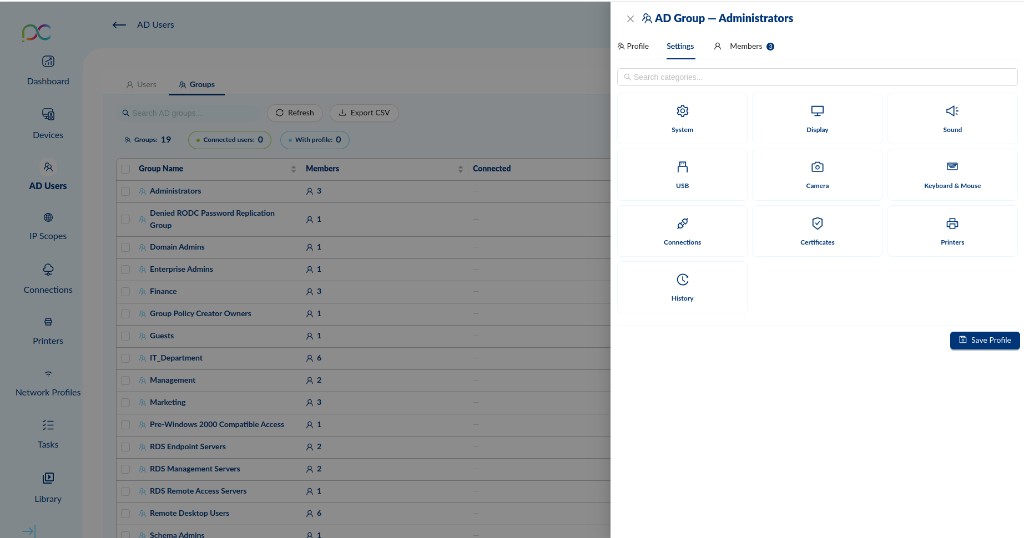
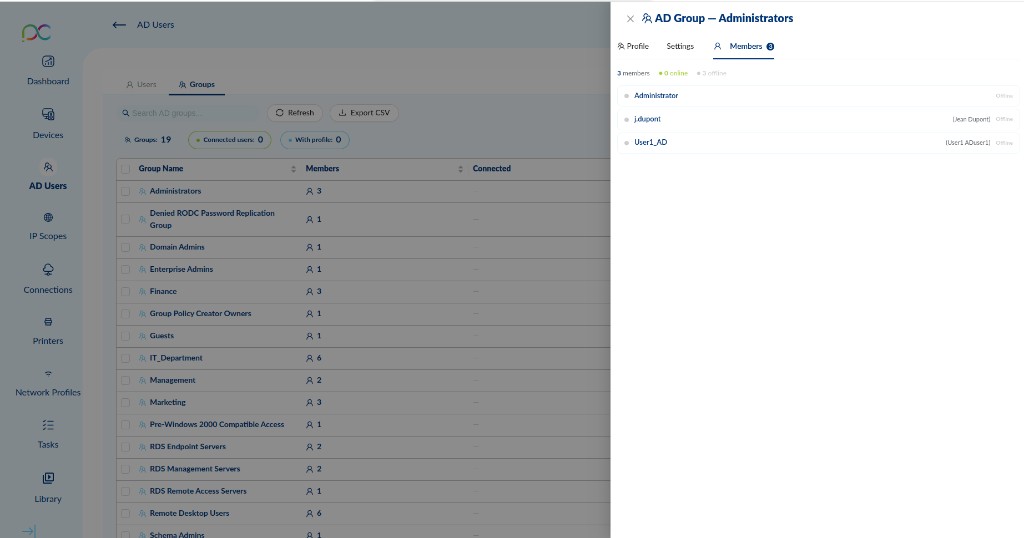
Similarly, clicking the settings icon on a group opens the AD Group panel with three tabs:
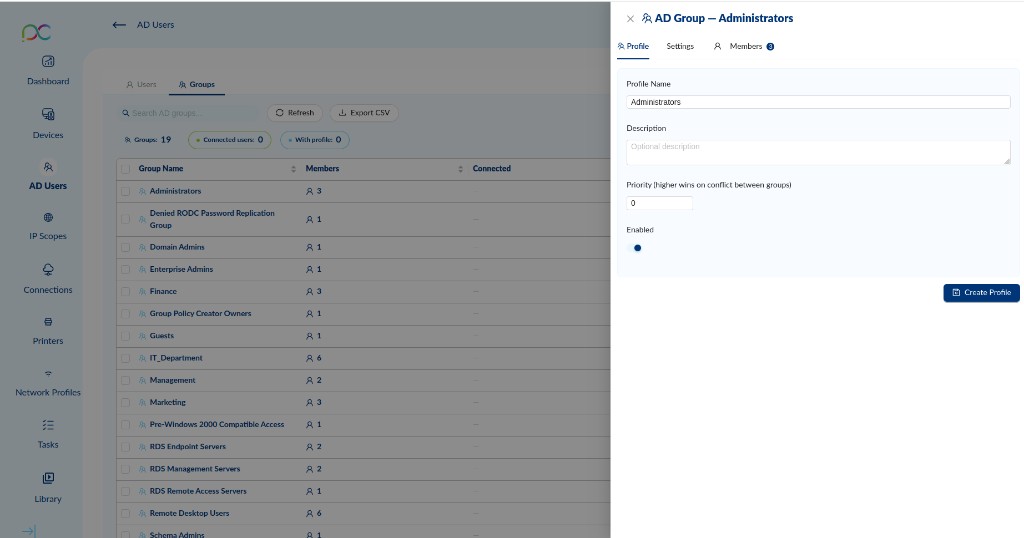
- Profile tab — Profile name, description, priority, enabled toggle. Click Create Profile.
- Settings tab — Same categories as the user profile: System, Display, Sound, USB, Camera, Keyboard & Mouse, Connections, Certificates, Printers, History. Click Save Profile.
- Members tab — Lists every user in the group with their display name and current online/offline status.
La page AD Users (barre latérale gauche) affiche tous les utilisateurs et groupes importés depuis Active Directory. Elle comporte deux onglets : Users et Groups.
Onglet Users
Colonnes affichées : Status, Username, Display Name, Email, Groups, Profile, Device, Last Login, Distinguished Name, OU. Utilisez la barre de recherche pour filtrer, Export CSV pour exporter, Refresh pour relire depuis l'annuaire.
Onglet Groups
Liste tous les groupes AD synchronisés avec : nom du groupe, nombre de membres, nombre de connectés, profil associé et actions.
Profil utilisateur AD
Cliquez sur l'icône profil d'un utilisateur pour ouvrir le panneau AD User Profile (onglets Profile et Settings). L'onglet Profile permet de définir un nom, une description, une priorité et d'activer le profil. L'onglet Settings applique des paramètres spécifiques à l'utilisateur : System, Display, Sound, USB, Camera, Keyboard & Mouse, Connections, Certificates, Printers, History. Ces paramètres suivent l'utilisateur sur tout appareil où il se connecte.
Profil groupe AD
Cliquez sur l'icône paramètres d'un groupe pour ouvrir le panneau AD Group (onglets Profile, Settings, Members). L'onglet Members liste les membres du groupe avec leur statut en temps réel.
Die Seite AD Users zeigt alle synchronisierten AD-Benutzer (Tab Users: Status, Benutzername, Gruppen, DN, OU) und AD-Gruppen (Tab Groups: Mitglieder, Verbunden, Profil). Klicken Sie auf das Profilsymbol eines Benutzers/einer Gruppe, um ein AD-Profil zu erstellen und gerätespezifische Einstellungen (System, Display, Sound, USB, Kamera…) zu konfigurieren, die dem Benutzer auf jedem Gerät folgen. Prioritätswert entscheidet bei Konflikten.
La página AD Users muestra todos los usuarios (pestaña Users: estado, nombre, grupos, DN, OU) y grupos (pestaña Groups: miembros, conectados, perfil) sincronizados desde AD. Haga clic en el icono de perfil de un usuario o grupo para crear un Perfil AD con ajustes específicos (System, Display, Sound, USB, Camera…) que siguen al usuario en cualquier dispositivo. La prioridad resuelve los conflictos entre perfiles.
A página AD Users mostra todos os utilizadores (separador Users: estado, nome, grupos, DN, OU) e grupos (separador Groups: membros, ligados, perfil) sincronizados do AD. Clique no ícone de perfil de um utilizador ou grupo para criar um Perfil AD com definições específicas (System, Display, Sound, USB, Camera…) que seguem o utilizador em qualquer dispositivo. A prioridade resolve conflitos entre perfis.
La pagina AD Users mostra tutti gli utenti (scheda Users: stato, nome, gruppi, DN, OU) e i gruppi (scheda Groups: membri, connessi, profilo) sincronizzati da AD. Fare clic sull'icona profilo di un utente o gruppo per creare un Profilo AD con impostazioni specifiche (System, Display, Sound, USB, Camera…) che seguono l'utente su qualsiasi dispositivo. La priorità risolve i conflitti tra profili.
דף AD Users מציג את כל המשתמשים (לשונית Users: סטטוס, שם, קבוצות, DN, OU) והקבוצות (לשונית Groups: חברים, מחוברים, פרופיל) המסונכרנים מ-AD. לחצו על סמל הפרופיל של משתמש או קבוצה ליצירת פרופיל AD עם הגדרות ייעודיות (System, Display, Sound, USB, Camera…) שעוקבות אחר המשתמש בכל מכשיר. העדיפות פותרת קונפליקטים בין פרופילים.