Tasks & Automation Tâches & Automatisation Aufgaben & Automatisierung Tareas & Automatización Tarefas & Automação Attività & Automazione משימות ואוטומציה
Video: Creating a Task Vidéo : Créer une Tâche Video: Aufgabe erstellen Vídeo: Crear una Tarea Vídeo: Criar uma Tarefa Video: Creare un'Attività וידאו: יצירת משימה
This screen recording shows the real Xcalibur interface — the 3-step task creation wizard (Task Type Selection → Target Selection → Execution Mode), task categories, and the Quick Tasks panel. It demonstrates immediate, scheduled, and recurring execution.
Cet enregistrement montre la vraie interface Xcalibur — l'assistant de création de tâche en 3 étapes (Sélection du type → Cibles → Mode d'exécution). Il démontre l'exécution immédiate, planifiée et récurrente.
Diese Bildschirmaufnahme zeigt die echte Xcalibur-Oberfläche — den 3-stufigen Aufgabenerstellungsassistenten (Typauswahl → Ziele → Ausführungsmodus).
Esta grabación muestra la interfaz real de Xcalibur — el asistente de 3 pasos (Tipo → Destinos → Modo de ejecución).
Esta gravação mostra a interface real do Xcalibur — o assistente de 3 passos (Tipo → Alvos → Modo de execução).
Questa registrazione mostra la vera interfaccia Xcalibur — la procedura guidata in 3 fasi (Tipo → Target → Modalità).
הקלטה זו מציגה את ממשק Xcalibur האמיתי — אשף יצירת המשימות ב-3 שלבים (סוג → יעדים → מצב ביצוע).
Tasks Overview Vue d'ensemble des Tâches Aufgaben Übersicht Resumen de Tareas Visão Geral das Tarefas Panoramica Attività סקירת משימות
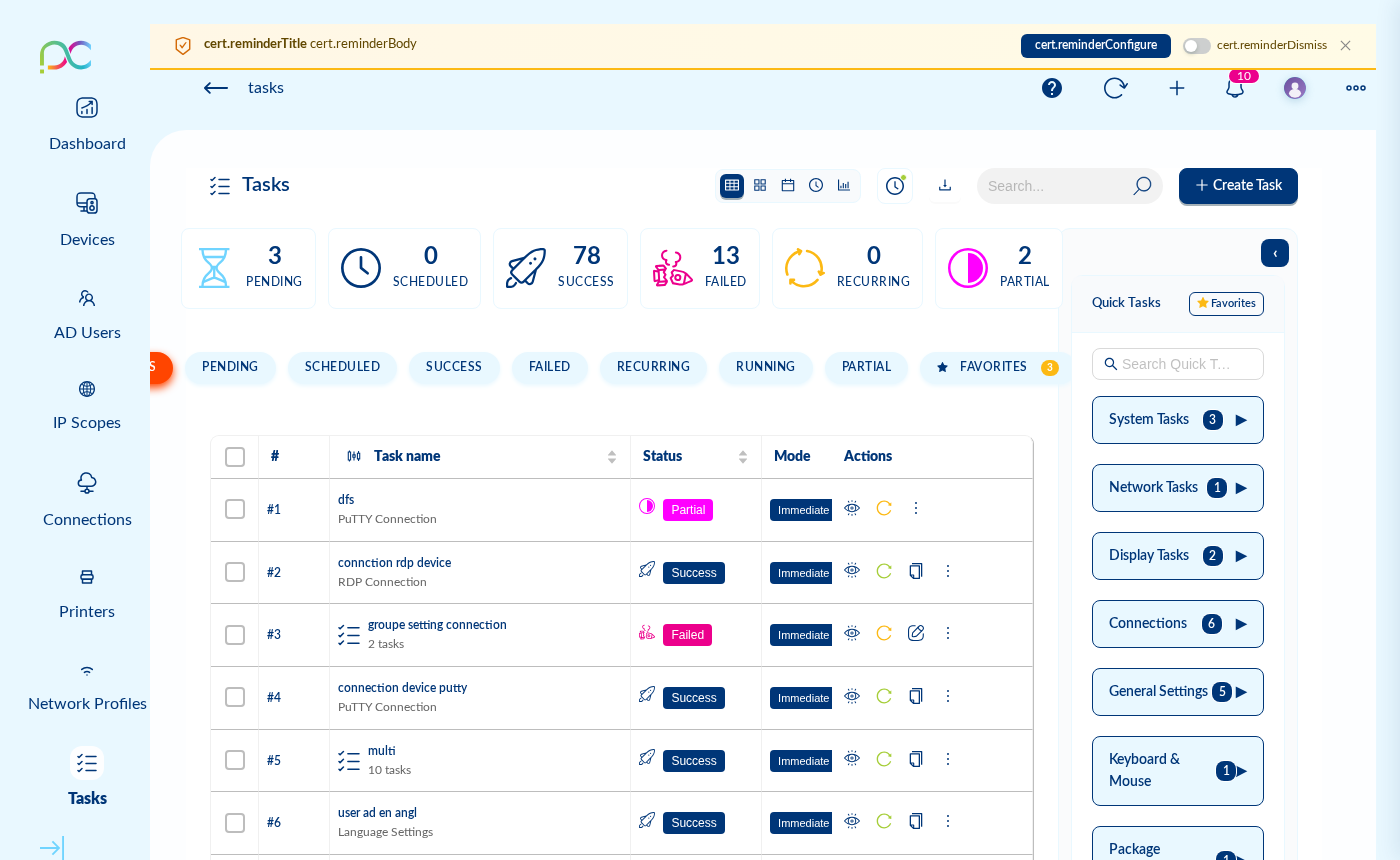
The Tasks module is the central automation engine of Xcalibur. It enables IT administrators to push configurations, deploy software, and execute remote actions on any number of endpoints — instantly, at a scheduled time, or on a recurring basis.
Each task records a complete, per-device execution audit trail — you can see exactly which device succeeded, failed, or is still pending, with timestamps and error details.
- 34 task types across 11 categories
- Target: individual devices, device groups, AD users, or AD groups
- 3 execution modes: Immediate, Scheduled (date + time), Recurring (daily / weekly / monthly)
- Multi-task: combine multiple task types in a single batch
- Quick Tasks: one-click actions directly from the device list
- Per-device execution status visible in real time
Le module Tâches est le moteur d'automatisation central d'Xcalibur. Il permet aux administrateurs IT de pousser des configurations, déployer des logiciels et exécuter des actions distantes sur n'importe quel nombre de terminaux — immédiatement, à une heure planifiée ou de manière récurrente.
Chaque tâche enregistre une piste d'audit complète par appareil — vous pouvez voir exactement quel appareil a réussi, échoué ou est toujours en attente, avec horodatages et détails d'erreur.
- 34 types de tâches répartis en 11 catégories
- Cibles : appareils individuels, groupes, utilisateurs AD ou groupes AD
- 3 modes d'exécution : Immédiat, Planifié (date + heure), Récurrent (quotidien / hebdomadaire / mensuel)
- Multi-tâche : combiner plusieurs types de tâches dans un même lot
- Quick Tasks : actions en un clic directement depuis la liste des appareils
Das Aufgaben-Modul ist die zentrale Automatisierungs-Engine von Xcalibur — 34 Aufgabentypen in 11 Kategorien, ausführbar sofort, geplant oder wiederkehrend.
El módulo de Tareas es el motor de automatización central — 34 tipos de tareas en 11 categorías, ejecutables de forma inmediata, programada o recurrente.
O módulo de Tarefas é o motor de automação central — 34 tipos de tarefas em 11 categorias, executáveis de forma imediata, agendada ou recorrente.
Il modulo Attività è il motore di automazione centrale — 34 tipi di attività in 11 categorie, eseguibili immediatamente, pianificate o ricorrenti.
מודול המשימות הוא מנוע האוטומציה המרכזי של Xcalibur — 34 סוגי משימות ב-11 קטגוריות, להפעלה מיידית, מתוזמנת או חוזרת.
Execution Modes Modes d'Exécution Ausführungsmodi Modos de Ejecución Modos de Execução Modalità di Esecuzione מצבי ביצוע
| Mode Mode Modus Modo Modo Modalità מצב | Description Description Beschreibung Descripción Descrição Descrizione תיאור | Use case Cas d'usage Anwendungsfall Caso de uso Caso de uso Caso d'uso מקרה שימוש |
|---|---|---|
| Immediate | Execute now — task is dispatched to all target devices immediately. Xcalibur waits for each device to come online and then delivers the task. Exécuter maintenant — la tâche est envoyée immédiatement aux appareils cibles. Xcalibur attend que chaque appareil soit en ligne pour livrer la tâche. Sofort ausführen — die Aufgabe wird sofort an alle Zielgeräte gesendet. Xcalibur wartet, bis jedes Gerät online ist, und stellt dann die Aufgabe zu. Ejecutar ahora — la tarea se envía a todos los dispositivos de destino de inmediato. Xcalibur espera a que cada dispositivo esté en línea y luego entrega la tarea. Executar agora — a tarefa é enviada imediatamente para todos os dispositivos de destino. O Xcalibur aguarda que cada dispositivo fique online e entrega a tarefa. Esegui ora — l'attività viene inviata immediatamente a tutti i dispositivi di destinazione. Xcalibur attende che ogni dispositivo sia online e consegna l'attività. ביצוע עכשיו — המשימה נשלחת לכל המכשירים המיועדים מיד. | Emergency config push, immediate remediation, one-off deployments Push de config d'urgence, remédiation immédiate, déploiements ponctuels Dringende Konfigurationsübertragung, sofortige Behebung, einmalige Deployments Envío urgente de configuración, remediación inmediata, despliegues puntuales Envio urgente de configuração, remediação imediata, implantações pontuais Push urgente di configurazione, remediation immediata, deployment una tantum דחיפת הגדרות דחופה, תיקון מיידי |
| Scheduled | Execute at a specific date and time. The task is queued and delivered when the scheduled moment arrives. Devices that are offline at that moment will receive the task when they reconnect. Exécuter à une date et heure spécifiques. La tâche est mise en file d'attente et livrée au moment planifié. Les appareils hors ligne reçoivent la tâche lors de leur reconnexion. Ausführung zu einem bestimmten Datum und einer bestimmten Uhrzeit. Die Aufgabe wird in die Warteschlange gestellt und zum geplanten Zeitpunkt zugestellt. Geräte, die zu diesem Zeitpunkt offline sind, erhalten die Aufgabe bei der nächsten Verbindung. Ejecutar en una fecha y hora específicas. La tarea se pone en cola y se entrega cuando llega el momento programado. Los dispositivos que estén desconectados en ese momento recibirán la tarea al reconectarse. Executar numa data e hora específicas. A tarefa fica em fila de espera e é entregue quando chega o momento agendado. Os dispositivos que estiverem offline nesse momento receberão a tarefa ao reconectar. Esecuzione in una data e ora specifiche. L'attività viene accodata e consegnata quando arriva il momento pianificato. I dispositivi offline in quel momento la riceveranno alla riconnessione. ביצוע בתאריך ושעה ספציפיים. מכשירים לא מקוונים יקבלו את המשימה עם חיבורם. | Off-hours maintenance, planned updates, pre-staged configurations Maintenance hors heures, mises à jour planifiées, configurations pré-staging Wartung außerhalb der Geschäftszeiten, geplante Updates, vorab bereitgestellte Konfigurationen Mantenimiento fuera de horario, actualizaciones planificadas, configuraciones preconfiguradas Manutenção fora do horário, atualizações planeadas, configurações pré-configuradas Manutenzione fuori orario, aggiornamenti pianificati, configurazioni pre-staged תחזוקה מחוץ לשעות עבודה, עדכונים מתוכננים |
| Recurring | Execute on a repeating schedule: Daily at a fixed time, Weekly on chosen days, Monthly on a chosen date, or a custom interval (every N hours/days). The task re-runs automatically at each occurrence. Exécuter selon un planning récurrent : Quotidien à heure fixe, Hebdomadaire les jours choisis, Mensuel à une date choisie, ou intervalle personnalisé (toutes les N heures/jours). La tâche se relance automatiquement. Ausführung nach einem wiederkehrenden Zeitplan: Täglich zu einer festen Zeit, Wöchentlich an gewählten Tagen, Monatlich an einem gewählten Datum, oder einem benutzerdefinierten Intervall (alle N Stunden/Tage). Die Aufgabe wird bei jedem Vorkommen automatisch erneut ausgeführt. Ejecutar según una programación recurrente: diariamente a una hora fija, semanalmente en días elegidos, mensualmente en una fecha elegida, o un intervalo personalizado (cada N horas/días). La tarea se vuelve a ejecutar automáticamente en cada ocurrencia. Executar num agendamento recorrente: diariamente a uma hora fixa, semanalmente nos dias escolhidos, mensalmente numa data escolhida, ou um intervalo personalizado (a cada N horas/dias). A tarefa é re-executada automaticamente em cada ocorrência. Esecuzione secondo una pianificazione ripetuta: giornalmente a un'ora fissa, settimanalmente nei giorni scelti, mensilmente in una data scelta, o un intervallo personalizzato (ogni N ore/giorni). L'attività viene rieseguita automaticamente a ogni ricorrenza. ביצוע לפי לוח זמנים חוזר: יומי, שבועי, חודשי, או מרווח מותאם אישית. | Policy enforcement, compliance checks, periodic NTP sync, log rotation Application des politiques, vérifications de conformité, synchronisation NTP périodique Richtliniendurchsetzung, Compliance-Prüfungen, periodische NTP-Synchronisierung, Log-Rotation Aplicación de políticas, comprobaciones de cumplimiento, sincronización NTP periódica, rotación de registros Aplicação de políticas, verificações de conformidade, sincronização NTP periódica, rotação de registos Applicazione delle policy, verifiche di conformità, sincronizzazione NTP periodica, rotazione dei log אכיפת מדיניות, בדיקות תאימות, סנכרון NTP תקופתי |
Target Selection Sélection des Cibles Zielauswahl Selección de Destinos Seleção de Alvos Selezione dei Destinatari בחירת יעדים
Xcalibur tasks can target any combination of the following:
| Target Type | Description | Notes |
|---|---|---|
| All Devices | Every registered device in Xcalibur | Use with caution — affects entire fleet |
| Device Group | A named group of thin client devices | Supports nested groups (include/exclude sub-groups) |
| Individual Device | One specific device by name or hostname | Identified by serial number or hostname |
| AD User | A specific Active Directory user account | Task applied when that user logs in |
| AD Group | All members of an Active Directory group | Task applied to all members at login |
Les tâches Xcalibur peuvent cibler n'importe quelle combinaison des éléments suivants :
| Type de cible | Description | Notes |
|---|---|---|
| Tous les appareils | Chaque appareil enregistré dans Xcalibur | À utiliser avec prudence — affecte toute la flotte |
| Groupe d'appareils | Un groupe nommé de terminaux | Supporte les groupes imbriqués |
| Appareil individuel | Un appareil spécifique par nom ou hostname | Identifié par numéro de série ou hostname |
| Utilisateur AD | Un compte Active Directory spécifique | Tâche appliquée à la connexion de cet utilisateur |
| Groupe AD | Tous les membres d'un groupe Active Directory | Tâche appliquée à tous les membres à la connexion |
Xcalibur-Aufgaben können auf jede Kombination der folgenden Ziele ausgerichtet werden:
| Zieltyp | Beschreibung | Hinweise |
|---|---|---|
| Alle Geräte | Jedes in Xcalibur registrierte Gerät | Mit Vorsicht verwenden — betrifft den gesamten Gerätepark |
| Gerätegruppe | Eine benannte Gruppe von Thin-Client-Geräten | Unterstützt verschachtelte Gruppen (Untergruppen einschließen/ausschließen) |
| Einzelnes Gerät | Ein bestimmtes Gerät nach Name oder Hostname | Identifiziert durch Seriennummer oder Hostname |
| AD-Benutzer | Ein bestimmtes Active-Directory-Benutzerkonto | Aufgabe wird bei der Anmeldung dieses Benutzers angewendet |
| AD-Gruppe | Alle Mitglieder einer Active-Directory-Gruppe | Aufgabe wird bei der Anmeldung auf alle Mitglieder angewendet |
Las tareas de Xcalibur pueden dirigirse a cualquier combinación de los siguientes destinos:
| Tipo de destino | Descripción | Notas |
|---|---|---|
| Todos los dispositivos | Todos los dispositivos registrados en Xcalibur | Usar con precaución — afecta a toda la flota |
| Grupo de dispositivos | Un grupo con nombre de thin clients | Admite grupos anidados (incluir/excluir subgrupos) |
| Dispositivo individual | Un dispositivo específico por nombre o hostname | Identificado por número de serie o hostname |
| Usuario AD | Una cuenta de Active Directory específica | Tarea aplicada cuando ese usuario inicia sesión |
| Grupo AD | Todos los miembros de un grupo de Active Directory | Tarea aplicada a todos los miembros al iniciar sesión |
As tarefas do Xcalibur podem ter como alvo qualquer combinação dos seguintes elementos:
| Tipo de alvo | Descrição | Notas |
|---|---|---|
| Todos os dispositivos | Todos os dispositivos registados no Xcalibur | Usar com cuidado — afeta toda a frota |
| Grupo de dispositivos | Um grupo nomeado de thin clients | Suporta grupos aninhados (incluir/excluir subgrupos) |
| Dispositivo individual | Um dispositivo específico por nome ou hostname | Identificado por número de série ou hostname |
| Utilizador AD | Uma conta de Active Directory específica | Tarefa aplicada quando esse utilizador inicia sessão |
| Grupo AD | Todos os membros de um grupo de Active Directory | Tarefa aplicada a todos os membros no início de sessão |
Le attività di Xcalibur possono essere destinate a qualsiasi combinazione dei seguenti elementi:
| Tipo di destinatario | Descrizione | Note |
|---|---|---|
| Tutti i dispositivi | Ogni dispositivo registrato in Xcalibur | Usare con cautela — interessa l'intera flotta |
| Gruppo di dispositivi | Un gruppo denominato di thin client | Supporta gruppi annidati (include/escludi sottogruppi) |
| Dispositivo singolo | Un dispositivo specifico per nome o hostname | Identificato dal numero seriale o hostname |
| Utente AD | Un account Active Directory specifico | Attività applicata all'accesso di quell'utente |
| Gruppo AD | Tutti i membri di un gruppo Active Directory | Attività applicata a tutti i membri all'accesso |
משימות Xcalibur יכולות לטרגט כל שילוב של: כל המכשירים, קבוצת מכשירים, מכשיר בודד, משתמש AD, או קבוצת AD.
How to Create a Task (Step by Step) Comment Créer une Tâche (Étape par Étape) Aufgabe erstellen (Schritt für Schritt) Cómo Crear una Tarea (Paso a Paso) Como Criar uma Tarefa (Passo a Passo) Come Creare un'Attività (Passo dopo Passo) כיצד ליצור משימה (שלב אחר שלב)
Open the Tasks module Ouvrir le module Tâches Aufgabenmodul öffnen Abrir el módulo de Tareas Abrir o módulo de Tarefas Aprire il modulo Attività פתח את מודול המשימות
Click Tasks in the left sidebar. The task list shows all tasks with their status (Pending, Running, Completed, Failed), creation date, and target count. Cliquez sur Tâches dans la barre latérale gauche. La liste des tâches affiche toutes les tâches avec leur statut (En attente, En cours, Terminé, Échec), date de création et nombre de cibles. Klicken Sie in der linken Seitenleiste auf Aufgaben. Die Aufgabenliste zeigt alle Aufgaben mit ihrem Status (Ausstehend, Wird ausgeführt, Abgeschlossen, Fehlgeschlagen), dem Erstellungsdatum und der Zielanzahl. Haga clic en Tareas en la barra lateral izquierda. La lista de tareas muestra todas las tareas con su estado (Pendiente, En ejecución, Completada, Fallida), fecha de creación y número de destinos. Clique em Tarefas na barra lateral esquerda. A lista de tarefas mostra todas as tarefas com o seu estado (Pendente, Em execução, Concluída, Falhada), data de criação e contagem de destinos. Fare clic su Attività nella barra laterale sinistra. L'elenco attività mostra tutte le attività con il loro stato (In attesa, In esecuzione, Completata, Non riuscita), la data di creazione e il numero di destinatari. לחץ על משימות בסרגל הצד השמאלי. רשימת המשימות מציגה את כל המשימות עם סטטוס, תאריך יצירה ומספר יעדים.
Click + Create Task Cliquer sur + Créer une Tâche Auf + Aufgabe erstellen klicken Hacer clic en + Crear Tarea Clicar em + Criar Tarefa Fare clic su + Crea Attività לחץ על + צור משימה
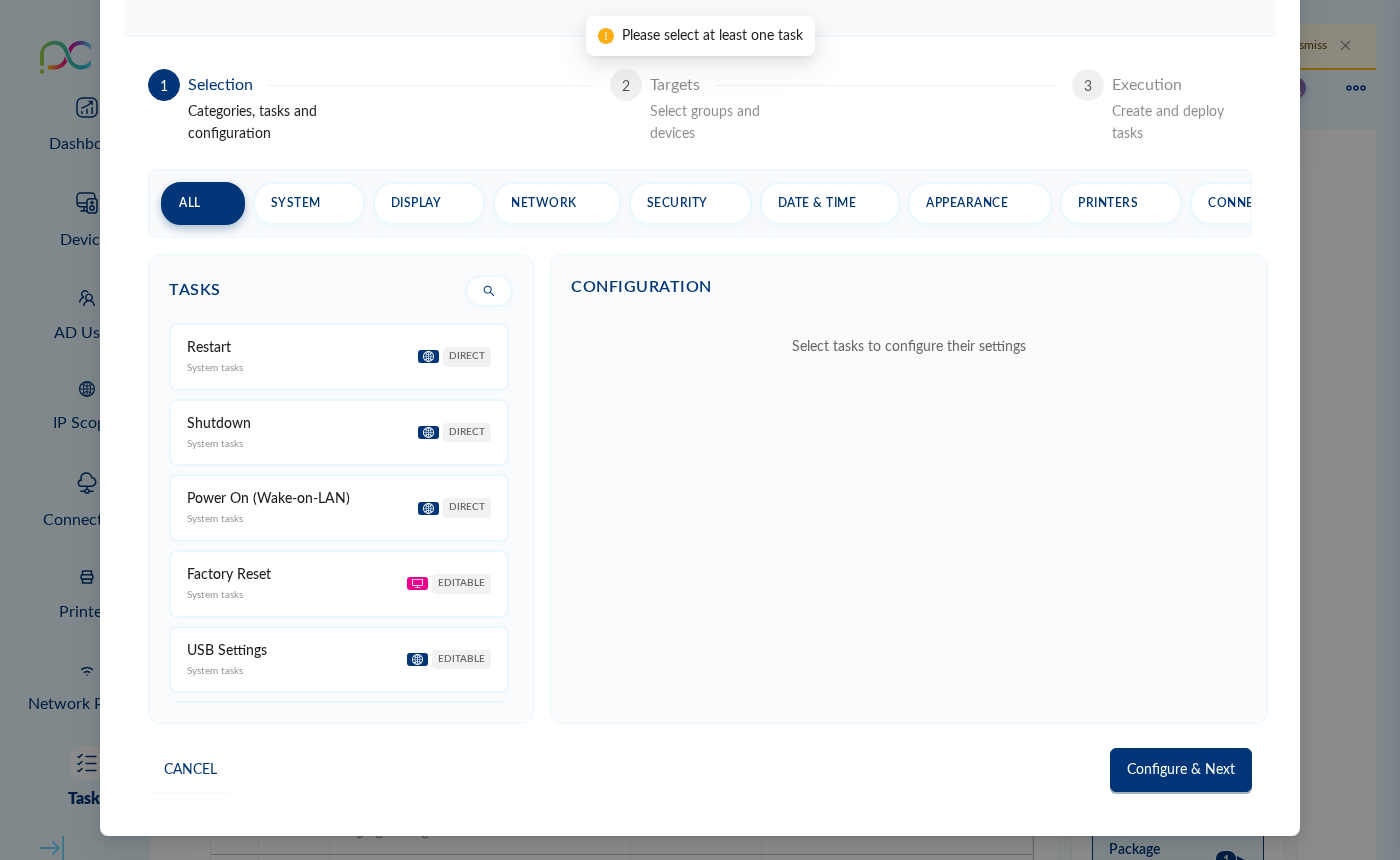
Click the + Create Task button (top right). The 3-step task creation wizard opens. The wizard fully supports dark mode — all panels, dropdowns, and device/group lists adapt to the active console theme. Cliquez sur le bouton + Créer une Tâche (en haut à droite). L'assistant de création de tâche en 3 étapes s'ouvre. L'assistant prend en charge le mode sombre — tous les panneaux, menus déroulants et listes s'adaptent au thème actif de la console. Klicken Sie auf die Schaltfläche + Aufgabe erstellen (oben rechts). Der 3-stufige Assistent zur Aufgabenerstellung wird geöffnet. Der Assistent unterstützt den Dark Mode vollständig. Haga clic en el botón + Crear Tarea (arriba a la derecha). Se abre el asistente de creación de tareas en 3 pasos. El asistente admite completamente el modo oscuro. Clique no botão + Criar Tarefa (canto superior direito). O assistente de criação de tarefas em 3 passos é aberto. O assistente suporta totalmente o modo escuro. Fare clic sul pulsante + Crea Attività (in alto a destra). Si apre la procedura guidata di creazione attività in 3 passi. La procedura guidata supporta completamente la modalità scura. לחץ על כפתור + צור משימה (ימין למעלה). אשף יצירת המשימות ב-3 שלבים נפתח. האשף תומך במלואו במצב כהה — כל הפאנלים, התפריטים ורשימות המכשירים/קבוצות מתאימים לנושא הפעיל של הממשק.
Step 1 — Choose a Task Type Étape 1 — Choisir un Type de Tâche Schritt 1 — Aufgabentyp auswählen Paso 1 — Elegir un Tipo de Tarea Passo 1 — Escolher um Tipo de Tarefa Passo 1 — Scegliere un Tipo di Attività שלב 1 — בחר סוג משימה
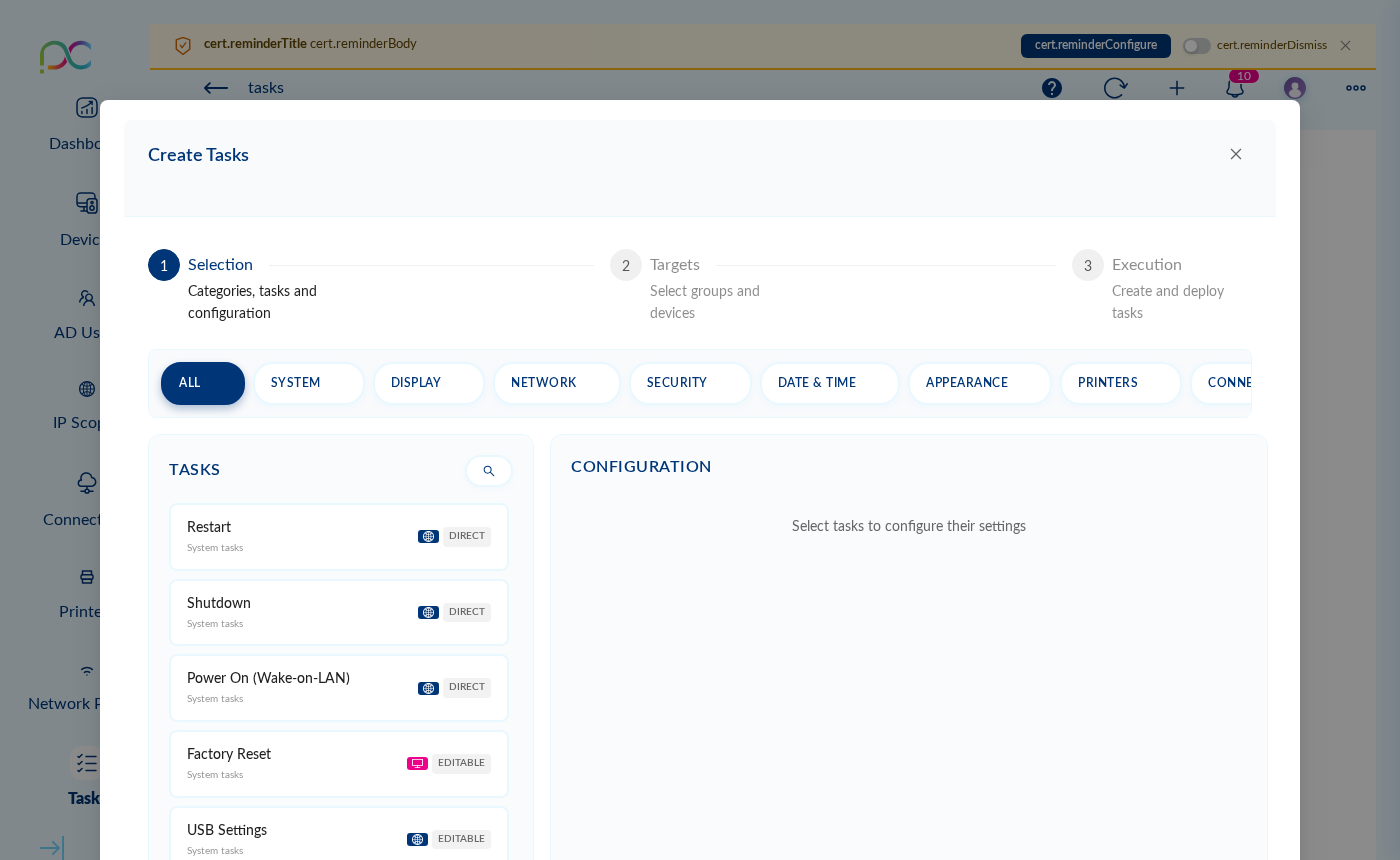
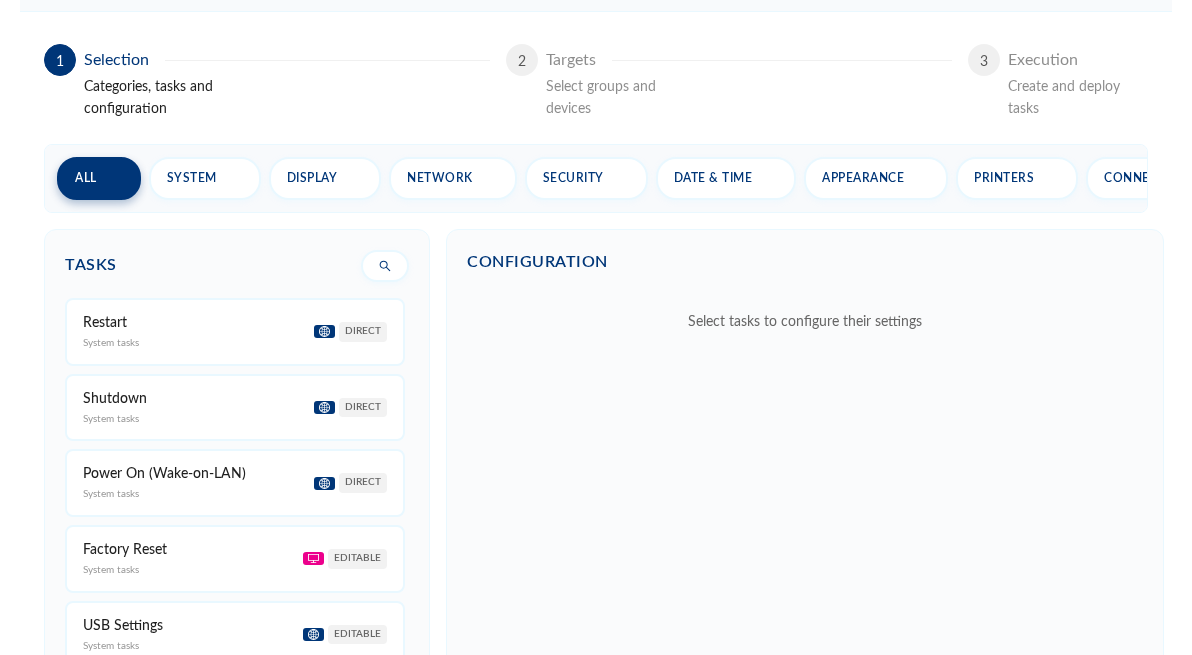
Browse categories (System, Display, Network, Security…) or use the search box to find a task. Click a task to select it. For configurable tasks, fill in the specific parameters (e.g., resolution, timezone, volume level). Parcourez les catégories (Système, Affichage, Réseau, Sécurité…) ou utilisez la recherche pour trouver une tâche. Cliquez sur une tâche pour la sélectionner. Pour les tâches configurables, renseignez les paramètres spécifiques. Durchsuchen Sie die Kategorien (System, Anzeige, Netzwerk, Sicherheit…) oder verwenden Sie das Suchfeld, um eine Aufgabe zu finden. Klicken Sie auf eine Aufgabe, um sie auszuwählen. Füllen Sie bei konfigurierbaren Aufgaben die spezifischen Parameter aus (z. B. Auflösung, Zeitzone, Lautstärke). Explore las categorías (Sistema, Pantalla, Red, Seguridad…) o use el cuadro de búsqueda para encontrar una tarea. Haga clic en una tarea para seleccionarla. Para las tareas configurables, rellene los parámetros específicos (p. ej., resolución, zona horaria, nivel de volumen). Navegue pelas categorias (Sistema, Ecrã, Rede, Segurança…) ou use a caixa de pesquisa para encontrar uma tarefa. Clique numa tarefa para a selecionar. Para tarefas configuráveis, preencha os parâmetros específicos (p. ex., resolução, fuso horário, nível de volume). Sfogliare le categorie (Sistema, Display, Rete, Sicurezza…) o usare la casella di ricerca per trovare un'attività. Fare clic su un'attività per selezionarla. Per le attività configurabili, compilare i parametri specifici (es. risoluzione, fuso orario, livello volume). עיין בקטגוריות (מערכת, תצוגה, רשת, אבטחה…) או השתמש בחיפוש. לחץ על משימה לבחירתה. למשימות הניתנות להגדרה, מלא את הפרמטרים הספציפיים.
Step 2 — Select Targets Étape 2 — Sélectionner les Cibles Schritt 2 — Ziele auswählen Paso 2 — Seleccionar Destinos Passo 2 — Selecionar Alvos Passo 2 — Selezionare i Destinatari שלב 2 — בחר יעדים
Choose which devices, groups, or AD users will receive the task. You can mix device groups and individual devices. Use the Generate Name button to auto-name the task based on the selected type and targets. Choisissez quels appareils, groupes ou utilisateurs AD recevront la tâche. Vous pouvez mélanger groupes et appareils individuels. Utilisez le bouton Générer le nom pour nommer automatiquement la tâche. Wählen Sie aus, welche Geräte, Gruppen oder AD-Benutzer die Aufgabe erhalten sollen. Gerätegruppen und einzelne Geräte können kombiniert werden. Verwenden Sie die Schaltfläche Name generieren, um die Aufgabe automatisch basierend auf Typ und Zielen zu benennen. Elija qué dispositivos, grupos o usuarios AD recibirán la tarea. Puede combinar grupos de dispositivos y dispositivos individuales. Use el botón Generar nombre para nombrar automáticamente la tarea según el tipo y los destinos seleccionados. Escolha quais dispositivos, grupos ou utilizadores AD receberão a tarefa. Pode combinar grupos de dispositivos e dispositivos individuais. Use o botão Gerar nome para nomear automaticamente a tarefa com base no tipo e destinos selecionados. Scegliere quali dispositivi, gruppi o utenti AD riceveranno l'attività. È possibile combinare gruppi di dispositivi e dispositivi individuali. Usare il pulsante Genera nome per denominare automaticamente l'attività in base al tipo e ai destinatari selezionati. בחר אילו מכשירים, קבוצות או משתמשי AD יקבלו את המשימה. השתמש בכפתור צור שם לשמות אוטומטי.
Step 3 — Choose Execution Mode and Confirm Étape 3 — Choisir le Mode d'Exécution et Confirmer Schritt 3 — Ausführungsmodus wählen und bestätigen Paso 3 — Elegir el Modo de Ejecución y Confirmar Passo 3 — Escolher o Modo de Execução e Confirmar Passo 3 — Scegliere la Modalità di Esecuzione e Confermare שלב 3 — בחר מצב ביצוע ואשר
Choose Immediate (now), Scheduled (pick a date and time), or Recurring (select frequency). Click Create Task to dispatch. The task appears in the list with real-time progress per device. Choisissez Immédiat (maintenant), Planifié (choisissez date et heure) ou Récurrent (sélectionnez la fréquence). Cliquez sur Créer la Tâche pour envoyer. La tâche apparaît dans la liste avec la progression en temps réel par appareil. Wählen Sie Sofort (jetzt), Geplant (Datum und Uhrzeit festlegen) oder Wiederkehrend (Häufigkeit auswählen). Klicken Sie auf Aufgabe erstellen, um sie zu senden. Die Aufgabe erscheint in der Liste mit dem Echtzeit-Fortschritt je Gerät. Elija Inmediato (ahora), Programado (seleccione fecha y hora) o Recurrente (seleccione la frecuencia). Haga clic en Crear Tarea para enviarla. La tarea aparece en la lista con el progreso en tiempo real por dispositivo. Escolha Imediato (agora), Agendado (selecione data e hora) ou Recorrente (selecione a frequência). Clique em Criar Tarefa para enviar. A tarefa aparece na lista com o progresso em tempo real por dispositivo. Scegliere Immediato (ora), Pianificato (selezionare data e ora) o Ricorrente (selezionare la frequenza). Fare clic su Crea Attività per inviare. L'attività compare nell'elenco con il progresso in tempo reale per dispositivo. בחר מיידי, מתוזמן (בחר תאריך ושעה), או חוזר (בחר תדירות). לחץ צור משימה לשליחה.
Complete Task Reference Référence Complète des Tâches Vollständige Aufgabenreferenz Referencia Completa de Tareas Referência Completa de Tarefas Riferimento Completo Attività מדריך מלא למשימות
The following table lists all 34 task types available in Xcalibur, their exact configurable parameters, applicable targets, and usage guidance.
Le tableau suivant liste les 34 types de tâches disponibles dans Xcalibur, leurs paramètres configurables exacts, les cibles applicables et les conseils d'utilisation.
Die folgende Tabelle listet alle 34 in Xcalibur verfügbaren Aufgabentypen auf, mit ihren konfigurierbaren Parametern, anwendbaren Zielen und Verwendungshinweisen.
La siguiente tabla lista los 34 tipos de tareas disponibles en Xcalibur, con sus parámetros configurables exactos, los destinos aplicables y la orientación de uso.
A tabela seguinte lista todos os 34 tipos de tarefas disponíveis no Xcalibur, com os respetivos parâmetros configuráveis, alvos aplicáveis e orientações de utilização.
La tabella seguente elenca tutti i 34 tipi di attività disponibili in Xcalibur, con i relativi parametri configurabili, i destinatari applicabili e le indicazioni d'uso.
הטבלה הבאה מפרטת את כל 34 סוגי המשימות הזמינים ב-Xcalibur, עם פרמטרים הניתנים להגדרה, יעדים ישימים והנחיות שימוש.
System Tasks
| Task Tâche Aufgabe Tarea Tarefa Attività משימה | Description & Parameters Description & Paramètres Beschreibung & Parameter Descripción y Parámetros Descrição e Parâmetros Descrizione e Parametri תיאור ופרמטרים | Type Type Typ Tipo Tipo Tipo סוג | Targets Cibles Ziele Destinos Alvos Destinatari יעדים |
|---|---|---|---|
| Restart | Sends a graceful reboot signal to the target device. The device will close all active sessions and restart ThinX OS. No configuration parameters required. Envoie un signal de redémarrage gracieux à l'appareil cible. L'appareil fermera toutes les sessions actives et redémarrera ThinX OS. Aucun paramètre de configuration requis. Sendet ein ordnungsgemäßes Neustartsignal an das Zielgerät. Das Gerät schließt alle aktiven Sitzungen und startet ThinX OS neu. Keine Konfigurationsparameter erforderlich. Envía una señal de reinicio ordenado al dispositivo de destino. El dispositivo cerrará todas las sesiones activas y reiniciará ThinX OS. No se requieren parámetros de configuración. Envia um sinal de reinício ordenado para o dispositivo de destino. O dispositivo fechará todas as sessões ativas e reiniciará o ThinX OS. Não são necessários parâmetros de configuração. Invia un segnale di riavvio controllato al dispositivo di destinazione. Il dispositivo chiuderà tutte le sessioni attive e riavvierà ThinX OS. Nessun parametro di configurazione richiesto. שולח אות הפעלה מחדש חינני למכשיר היעד. ללא פרמטרי הגדרה. | Direct | Devices & AD Users |
| Shutdown | Sends a graceful shutdown signal. The device will close all sessions and power off. The device will not turn back on unless manually powered or triggered by Wake-on-LAN. Envoie un signal d'arrêt gracieux. L'appareil fermera toutes les sessions et s'éteindra. Il ne redémarrera pas à moins d'être manuellement alimenté ou déclenché par Wake-on-LAN. Sendet ein ordnungsgemäßes Herunterfahrsignal. Das Gerät schließt alle Sitzungen und schaltet sich aus. Es schaltet sich nicht wieder ein, es sei denn, es wird manuell eingeschaltet oder per Wake-on-LAN ausgelöst. Envía una señal de apagado ordenado. El dispositivo cerrará todas las sesiones y se apagará. El dispositivo no se volverá a encender a menos que se encienda manualmente o se active mediante Wake-on-LAN. Envia um sinal de encerramento ordenado. O dispositivo fechará todas as sessões e desligará. O dispositivo não voltará a ligar, a menos que seja ligado manualmente ou ativado por Wake-on-LAN. Invia un segnale di spegnimento controllato. Il dispositivo chiuderà tutte le sessioni e si spegnerà. Il dispositivo non si riaccenderà a meno che non venga acceso manualmente o tramite Wake-on-LAN. שולח אות כיבוי חינני. המכשיר יכבה ולא יחזור לפעולה אלא ידנית או דרך WoL. | Direct | Devices & AD Users |
| Power On (Wake-on-LAN) | Sends a Wake-on-LAN (WoL) magic packet over the network to power on a device that supports WoL. The device must have WoL enabled in its BIOS/firmware and its MAC address must be registered in Xcalibur. No configuration parameters required. Envoie un paquet magique Wake-on-LAN (WoL) sur le réseau pour allumer un appareil qui supporte WoL. L'appareil doit avoir WoL activé dans son BIOS/firmware et son adresse MAC doit être enregistrée dans Xcalibur. Sendet ein Wake-on-LAN (WoL) Magic Packet über das Netzwerk, um ein WoL-fähiges Gerät einzuschalten. Das Gerät muss WoL im BIOS/Firmware aktiviert haben und seine MAC-Adresse muss in Xcalibur registriert sein. Keine Konfigurationsparameter erforderlich. Envía un paquete mágico Wake-on-LAN (WoL) a través de la red para encender un dispositivo compatible con WoL. El dispositivo debe tener WoL habilitado en su BIOS/firmware y su dirección MAC debe estar registrada en Xcalibur. No se requieren parámetros de configuración. Envia um pacote mágico Wake-on-LAN (WoL) pela rede para ligar um dispositivo que suporte WoL. O dispositivo deve ter WoL ativado no BIOS/firmware e o seu endereço MAC deve estar registado no Xcalibur. Não são necessários parâmetros de configuração. Invia un pacchetto magico Wake-on-LAN (WoL) sulla rete per accendere un dispositivo che supporta WoL. Il dispositivo deve avere WoL abilitato nel BIOS/firmware e il suo indirizzo MAC deve essere registrato in Xcalibur. Nessun parametro di configurazione richiesto. שולח חבילת Wake-on-LAN להפעלת מכשיר שתומך ב-WoL. ה-MAC חייב להיות רשום ב-Xcalibur. | Direct | Devices & AD Users |
| Factory Reset |
Destructive — erases all local configuration. Resets the ThinX OS device to factory defaults, removing all locally stored connections, certificates, settings, and customizations. Requires typing "confirm" in the task form as a safety measure. Only applicable to physical devices (not AD users).
Destructif — efface toute la configuration locale. Réinitialise l'appareil ThinX OS aux paramètres d'usine, supprimant toutes les connexions, certificats, paramètres et personnalisations stockés localement. Nécessite de taper "confirm" dans le formulaire. Uniquement applicable aux appareils physiques.
Destruktiv — löscht die gesamte lokale Konfiguration. Setzt das ThinX-OS-Gerät auf die Werkseinstellungen zurück und entfernt alle lokal gespeicherten Verbindungen, Zertifikate, Einstellungen und Anpassungen. Erfordert die Eingabe von „confirm" im Aufgabenformular als Sicherheitsmaßnahme. Nur auf physische Geräte anwendbar.
Destructivo — borra toda la configuración local. Restablece el dispositivo ThinX OS a la configuración de fábrica, eliminando todas las conexiones, certificados, ajustes y personalizaciones almacenados localmente. Requiere escribir "confirm" en el formulario de tarea como medida de seguridad. Solo aplicable a dispositivos físicos.
Destrutivo — apaga toda a configuração local. Repõe o dispositivo ThinX OS para as predefinições de fábrica, removendo todas as ligações, certificados, definições e personalizações armazenados localmente. Requer a digitação de "confirm" no formulário da tarefa como medida de segurança. Apenas aplicável a dispositivos físicos.
Distruttivo — cancella tutta la configurazione locale. Ripristina il dispositivo ThinX OS alle impostazioni di fabbrica, rimuovendo tutte le connessioni, i certificati, le impostazioni e le personalizzazioni memorizzati localmente. Richiede di digitare "confirm" nel modulo dell'attività come misura di sicurezza. Applicabile solo ai dispositivi fisici.
הרסני — מוחק את כל ההגדרות המקומיות. מאפס את מכשיר ThinX OS להגדרות ברירת המחדל של היצרן. דורש הקלדת "confirm" בטופס המשימה. ישים רק למכשירים פיזיים.
Parameter:
|
Configurable | Devices only |
| USB Settings |
Configures which USB device classes are permitted on the target device. Each class can be independently enabled or disabled. Changes take effect immediately without reboot.
Configure les classes de périphériques USB autorisées sur l'appareil cible. Chaque classe peut être activée/désactivée indépendamment. Les changements prennent effet immédiatement sans redémarrage.
Konfiguriert, welche USB-Geräteklassen auf dem Zielgerät zugelassen sind. Jede Klasse kann unabhängig aktiviert oder deaktiviert werden. Änderungen werden sofort ohne Neustart wirksam.
Configura qué clases de dispositivos USB están permitidas en el dispositivo de destino. Cada clase se puede habilitar o deshabilitar de forma independiente. Los cambios surten efecto de inmediato sin necesidad de reinicio.
Configura quais as classes de dispositivos USB permitidas no dispositivo de destino. Cada classe pode ser ativada ou desativada de forma independente. As alterações entram em vigor imediatamente sem necessidade de reinício.
Configura le classi di dispositivi USB consentite sul dispositivo di destinazione. Ogni classe può essere abilitata o disabilitata in modo indipendente. Le modifiche hanno effetto immediato senza riavvio.
מגדיר אילו מחלקות USB מותרות במכשיר היעד. כל מחלקה ניתנת להפעלה/כיבוי עצמאית.
Parameters:
|
Configurable | Devices & AD Users |
| USB Whitelist/Blacklist |
Applies a USB device access policy (whitelist or blacklist) created in Xcalibur's Security → USB Device Policies library. A whitelist allows only specified USB Vendor ID / Product ID combinations; a blacklist blocks specific devices while allowing others.
Applique une politique d'accès aux périphériques USB (whitelist ou blacklist) créée dans la bibliothèque Xcalibur Sécurité → Politiques USB. Une whitelist n'autorise que les combinaisons VID/PID spécifiées ; une blacklist bloque des appareils spécifiques.
Wendet eine USB-Gerätezugriffsrichtlinie (Whitelist oder Blacklist) an, die in Xcaliburs Bibliothek Sicherheit → USB-Geräterichtlinien erstellt wurde. Eine Whitelist erlaubt nur angegebene USB-VID/PID-Kombinationen; eine Blacklist sperrt bestimmte Geräte und lässt andere zu.
Aplica una política de acceso a dispositivos USB (lista blanca o lista negra) creada en la biblioteca Xcalibur Seguridad → Políticas de dispositivos USB. Una lista blanca permite solo las combinaciones de VID/PID USB especificadas; una lista negra bloquea dispositivos específicos mientras permite otros.
Aplica uma política de acesso a dispositivos USB (lista branca ou lista negra) criada na biblioteca Xcalibur Segurança → Políticas de dispositivos USB. Uma lista branca permite apenas combinações VID/PID USB especificadas; uma lista negra bloqueia dispositivos específicos e permite outros.
Applica un criterio di accesso ai dispositivi USB (whitelist o blacklist) creato nella libreria Xcalibur Sicurezza → Criteri dispositivi USB. Una whitelist consente solo le combinazioni VID/PID USB specificate; una blacklist blocca dispositivi specifici consentendo gli altri.
מיישם מדיניות גישה ל-USB (רשימה לבנה/שחורה) שנוצרה בספריית מדיניות USB של Xcalibur.
Parameters:
|
Configurable | Devices & AD Users |
| Camera Settings |
Configures the webcam / video capture device settings including enable state, resolution, frame rate, and protocol-specific redirections for Citrix, RDP, and VMware Horizon remoting sessions.
Configure les paramètres du périphérique webcam / capture vidéo : état d'activation, résolution, fréquence d'images et redirections spécifiques aux protocoles Citrix, RDP et VMware Horizon.
Konfiguriert die Webcam-/Videoerfassungsgeräteeinstellungen, einschließlich Aktivierungsstatus, Auflösung, Bildrate und protokollspezifischer Weiterleitungen für Citrix, RDP und VMware-Horizon-Remotesitzungen.
Configura los ajustes del dispositivo de captura de vídeo/webcam, incluidos el estado de habilitación, la resolución, la frecuencia de fotogramas y las redirecciones específicas de protocolo para sesiones remotas de Citrix, RDP y VMware Horizon.
Configura as definições do dispositivo de captura de vídeo/webcam, incluindo o estado de ativação, resolução, taxa de fotogramas e redirecionamentos específicos de protocolo para sessões remotas Citrix, RDP e VMware Horizon.
Configura le impostazioni del dispositivo webcam/acquisizione video, inclusi stato di abilitazione, risoluzione, frame rate e reindirizzamenti specifici del protocollo per sessioni remote Citrix, RDP e VMware Horizon.
מגדיר הגדרות מצלמת רשת: מצב הפעלה, רזולוציה, קצב פריימים, והפניות פרוטוקול עבור Citrix, RDP ו-VMware Horizon.
Parameters:
|
Configurable | Devices & AD Users |
| Install Package |
Deploys a software package (application) from the Xcalibur Library to target devices. Used to push protocol clients such as FreeRDP, Citrix Workspace App, VMware Horizon, or any custom package uploaded to the library.
Déploie un paquet logiciel (application) de la bibliothèque Xcalibur vers les appareils cibles. Utilisé pour pousser des clients de protocoles comme FreeRDP, Citrix Workspace App, VMware Horizon, ou tout paquet personnalisé uploadé dans la bibliothèque.
Stellt ein Softwarepaket (Anwendung) aus der Xcalibur-Bibliothek auf Zielgeräten bereit. Wird verwendet, um Protokoll-Clients wie FreeRDP, Citrix Workspace App, VMware Horizon oder benutzerdefinierte in die Bibliothek hochgeladene Pakete zu übertragen.
Despliega un paquete de software (aplicación) de la biblioteca de Xcalibur en los dispositivos de destino. Se usa para enviar clientes de protocolo como FreeRDP, Citrix Workspace App, VMware Horizon o cualquier paquete personalizado cargado en la biblioteca.
Implementa um pacote de software (aplicação) da Biblioteca Xcalibur nos dispositivos de destino. Usado para enviar clientes de protocolo como FreeRDP, Citrix Workspace App, VMware Horizon ou qualquer pacote personalizado carregado na biblioteca.
Distribuisce un pacchetto software (applicazione) dalla Libreria Xcalibur ai dispositivi di destinazione. Utilizzato per inviare client di protocollo come FreeRDP, Citrix Workspace App, VMware Horizon o qualsiasi pacchetto personalizzato caricato nella libreria.
פורס חבילת תוכנה (אפליקציה) מספריית Xcalibur למכשירי היעד. משמש לדחיפת לקוחות פרוטוקול כגון FreeRDP, Citrix Workspace App, VMware Horizon.
Parameter:
|
Configurable | Devices & AD Users |
Display
| Task | Description & Parameters | Type | Targets |
|---|---|---|---|
| Screen Resolution |
Sets the screen resolution and monitor refresh rate on the target device.
Parameters:
|
Configurable | Devices & AD Users |
| Orientation (Landscape/Portrait) |
Sets the display rotation for the device screen. Useful for kiosk deployments or vertical screen installations.
Parameter:
|
Configurable | Devices & AD Users |
| Display Mode (Extend / Mirror / Single) |
Sets how multiple monitors are used when more than one display is connected.
Parameter:
|
Configurable | Devices & AD Users |
| Screen Sleep/Turn Off |
Configures the DPMS (Display Power Management) timers — how long until the screen goes to sleep and how long until it turns off completely. Setting either value to "Never" disables that timer.
Parameters:
|
Configurable | Devices & AD Users |
Security
| Task | Description & Parameters | Type | Targets |
|---|---|---|---|
| Certificate Upload |
Deploys a CA or client certificate to the trust store of target devices. Certificates are used for HTTPS, 802.1X EAP-TLS, and VPN authentication.
Parameters:
|
Upload | Devices & AD Users |
| Remove Certificate |
Removes a previously installed certificate from the target device's trust store.
Parameter:
|
Configurable | Devices & AD Users |
| Advanced Settings |
Enables or disables access to the local ThinX OS Advanced Settings panel. Disabling it locks the device in kiosk mode — users cannot access local settings without an Xcalibur admin intervention.
Parameter:
|
Configurable | Devices & AD Users |
| Change Advanced Settings Password |
Changes the local administrator password required to access the ThinX OS Advanced Settings panel. Using this task keeps Xcalibur and the device in sync. Minimum 1 character; passwords are transmitted encrypted.
Parameters:
|
Configurable | Devices & AD Users |
| Change VNC Password |
Changes the VNC (Virtual Network Computing) password on the target device. This password is required to connect to the device via VNC for remote control (in addition to Xcalibur's own remote control feature). Passwords are transmitted encrypted.
Parameters:
|
Configurable | Devices & AD Users |
Network
| Task | Description & Parameters | Type | Targets |
|---|---|---|---|
| Deploy Network Profile |
Deploys a general wired network profile (DHCP or Static IP) created in Xcalibur's Network Profiles library. This covers Ethernet configuration including IP, mask, gateway, DNS, and proxy settings.
Parameter:
|
Configurable | Devices & AD Users |
| Deploy WiFi Profile |
Deploys a Wi-Fi profile (SSID, authentication, password) to the target device. Supports WPA2-Personal, WPA3, and WPA2/WPA3-Enterprise. Hidden SSIDs are also supported.
Parameter:
|
Configurable | Devices & AD Users |
| Deploy Static IP Profile |
Deploys a static IP address profile, setting a fixed IP address, subnet mask, default gateway, and DNS servers on the target device.
Parameter:
|
Configurable | Devices & AD Users |
| Deploy 802.1X Profile |
Deploys an 802.1X enterprise network authentication profile. Supports PEAP-MSCHAPv2, EAP-TLS (with certificate), and EAP-TTLS authentication methods for wired Ethernet connections.
Parameter:
|
Configurable | Devices & AD Users |
Printers
| Task | Description & Parameters | Type | Targets |
|---|---|---|---|
| Add Network Printer |
Adds a network printer directly by its IP address. The printer is installed using the specified protocol and driver.
Parameters:
|
Configurable | Devices & AD Users |
| Deploy Printer (from Library) |
Deploys a pre-configured printer profile from the Xcalibur Library. The profile includes all printer configuration (IP, driver, protocol). Multiple identical printers across your fleet can be deployed consistently.
Parameter:
|
Configurable | Devices & AD Users |
| Remove Printer |
Removes a previously installed printer from the target device. The printer is uninstalled from the CUPS system.
Parameter:
|
Configurable | Devices & AD Users |
| Enable / Disable LPD Server |
Enables or disables the ThinX OS LPD (Line Printer Daemon) print server. When enabled, the thin client acts as a print server accessible by other devices on the network using the LPR protocol.
Parameters:
|
Configurable | Devices & AD Users |
| Enable / Disable Printing |
Globally enables or disables the printing capability on the target device. When disabled, no print jobs can be submitted regardless of which printers are configured.
Parameter:
|
Configurable | Devices & AD Users |
| Set Default Printer |
Sets one of the installed printers as the default CUPS printer on the target device. The default printer is used when no specific printer is selected in a print dialog.
Parameter:
|
Configurable | Devices & AD Users |
Audio
| Task | Description & Parameters | Type | Targets |
|---|---|---|---|
| Sound Settings |
Configures the audio output and microphone settings on the target. Can be applied to both a device (hardware setting) or to a specific AD user (applied at their next login session).
Parameters:
|
Configurable | Devices & AD Users (not AD groups) |
Date & Time
| Task | Description & Parameters | Type | Targets |
|---|---|---|---|
| Time Zone |
Sets the system timezone on the target device using the IANA timezone database. Correct timezone is critical for Kerberos/Active Directory authentication.
Parameters:
|
Configurable | Devices & AD Users |
| NTP Server |
Sets the NTP (Network Time Protocol) server address for time synchronization. Accurate time synchronization is required for SSL/TLS certificate validation and Active Directory Kerberos authentication (max 5-minute drift).
Parameter:
|
Configurable | Devices & AD Users |
| Time Format (12h / 24h) |
Sets the system clock display format between 12-hour (AM/PM) and 24-hour formats.
Parameter:
|
Configurable | Devices & AD Users |
Appearance
| Task | Description & Parameters | Type | Targets |
|---|---|---|---|
| Theme (Light / Dark) |
Sets the ThinX OS UI theme (light or dark mode).
Parameter:
|
Configurable | Devices & AD Users |
| Language Settings |
Sets the ThinX OS system language/locale. Affects all UI text, error messages, and system dialogs. A session restart may be required for full effect.
Parameter:
|
Configurable | Devices & AD Users |
| Wallpaper Upload |
Deploys a desktop wallpaper/background image to target devices. Can be used to enforce corporate branding across the entire fleet.
Parameters:
|
Upload | Devices & AD Users |
Connections
| Task | Description & Parameters | Type | Targets |
|---|---|---|---|
| Deploy Connection |
Deploys one or more connection shortcuts (RDP, Citrix, VMware Horizon, VNC, SSH, Web) from the Xcalibur Connections library to target devices. Deployed connections appear in the ThinX OS connection launcher.
Parameter:
|
Direct | Devices & AD Users |
| Remove Connection |
Removes a previously deployed connection shortcut from target devices. The connection is removed from the ThinX OS connection launcher.
Parameter:
|
Direct | Devices & AD Users |
Input (Keyboard & Mouse)
| Task | Description & Parameters | Type | Targets |
|---|---|---|---|
| Keyboard Layout |
Sets the keyboard layout(s) for the target device. Multiple layouts can be stacked and switched with Alt+Shift.
Parameters:
|
Configurable | Devices & AD Users |
| Mouse Settings |
Configures mouse behavior. Can be applied per AD user for personalized settings.
Parameters:
|
Configurable | Devices & AD Users (not AD groups) |
Session
| Task | Description & Parameters | Type | Targets |
|---|---|---|---|
| Auto App Update |
Enables or disables the automatic application update mechanism on ThinX OS. When enabled, the device will automatically apply Xcalibur-pushed application updates without requiring manual intervention.
Parameter:
|
Configurable | Devices & AD Users |
| Debug Logs |
Enables or disables verbose debug logging on the target device. Debug logs are sent to Xcalibur and can be downloaded for troubleshooting. Warning: enabling debug logs increases storage and network usage; disable after troubleshooting.
Parameter:
|
Configurable | Devices & AD Users |
| Session Policy |
Configures the Active Directory session timeout and security policy for AD users. Defines what happens when a session is inactive and what is required when the user wakes/reconnects.
Parameters:
|
Configurable | Devices & AD Users |