Audit & SecurityAudit & SécuritéAudit & SicherheitAuditoría & SeguridadAuditoria & SegurançaAudit & Sicurezzaביקורת ואבטחה
Audit Log Structure Structure du journal d'audit Audit-Protokoll-Struktur Estructura del registro de auditoría Estrutura do registo de auditoria Struttura del log di audit מבנה יומן הביקורת
| FieldChampFeldCampoCampoCampoשדה | DescriptionDescriptionBeschreibungDescripciónDescriçãoDescrizioneתיאור | ExampleExempleBeispielEjemploExemploEsempioדוגמה |
|---|---|---|
timestamp | Date and time of the event (ISO 8601, server TZ)Date et heure de l'événement (ISO 8601, TZ serveur)Datum und Uhrzeit des EreignissesFecha y hora del eventoData e hora do eventoData e ora dell'eventoתאריך ושעת האירוע (ISO 8601, אזור זמן שרת) | 2026-04-24T09:14:32Z |
username | Admin or technician who performed the actionAdmin ou technicien ayant effectué l'actionAdmin/Techniker, der die Aktion durchgeführt hatAdmin o técnico que realizó la acciónAdmin ou técnico que realizou a açãoAdmin o tecnico che ha eseguito l'azioneמנהל או טכנאי שביצע את הפעולה | jsmith |
terminal | Device hostname or MAC address involvedHostname ou adresse MAC de l'appareil impliquéGerätehostname oder MAC-AdresseHostname o dirección MAC del dispositivoHostname ou endereço MAC do dispositivoHostname o indirizzo MAC del dispositivohostname או כתובת MAC של המכשיר הנוגע בדבר | TC-FLOOR-42 |
action | What was done — login, task execution, config change, connection open, permission changeCe qui a été fait — connexion, exécution de tâche, changement de config, ouverture de connexion, changement de permissionWas getan wurde — Login, Aufgabenausführung, Konfigurationsänderung, VerbindungsöffnungLo que se hizo — inicio de sesión, ejecución de tarea, cambio de configuraciónO que foi feito — início de sessão, execução de tarefa, alteração de configuraçãoCosa è stato fatto — accesso, esecuzione attività, modifica configurazioneמה בוצע — כניסה, הרצת משימה, שינוי הגדרות, פתיחת חיבור, שינוי הרשאות | TASK_EXEC, LOGIN, CONFIG_CHANGE |
protocol | Connection protocol used (for connection events)Protocole de connexion utilisé (pour les événements de connexion)Verwendetes VerbindungsprotokollProtocolo de conexión utilizadoProtocolo de conexão utilizadoProtocollo di connessione utilizzatoפרוטוקול החיבור שנעשה בו שימוש (לאירועי חיבור) | RDP, VNC, SSH |
ip_address | Source IP address of the actionAdresse IP source de l'actionQuell-IP-Adresse der AktionDirección IP de origen de la acciónEndereço IP de origem da açãoIndirizzo IP di origine dell'azioneכתובת IP מקור של הפעולה | 192.168.1.45 |
success | Whether the action succeeded or failedSi l'action a réussi ou échouéOb die Aktion erfolgreich war oder fehlgeschlagen istSi la acción tuvo éxito o fallóSe a ação foi bem-sucedida ou falhouSe l'azione ha avuto successo o è fallitaהאם הפעולה הצליחה או נכשלה | true / false |
duration_ms | How long the action took in millisecondsDurée de l'action en millisecondesWie lange die Aktion gedauert hat (ms)Duración de la acción en milisegundosDuração da ação em milissegundosDurata dell'azione in millisecondiמשך הפעולה במילי-שניות | 1243 |
Audit Logs — The 5 Tabs Audit Logs — Les 5 onglets Audit Logs — Die 5 Tabs Audit Logs — Las 5 pestañas Audit Logs — Os 5 separadores Audit Logs — Le 5 schede Audit Logs — 5 הלשוניות
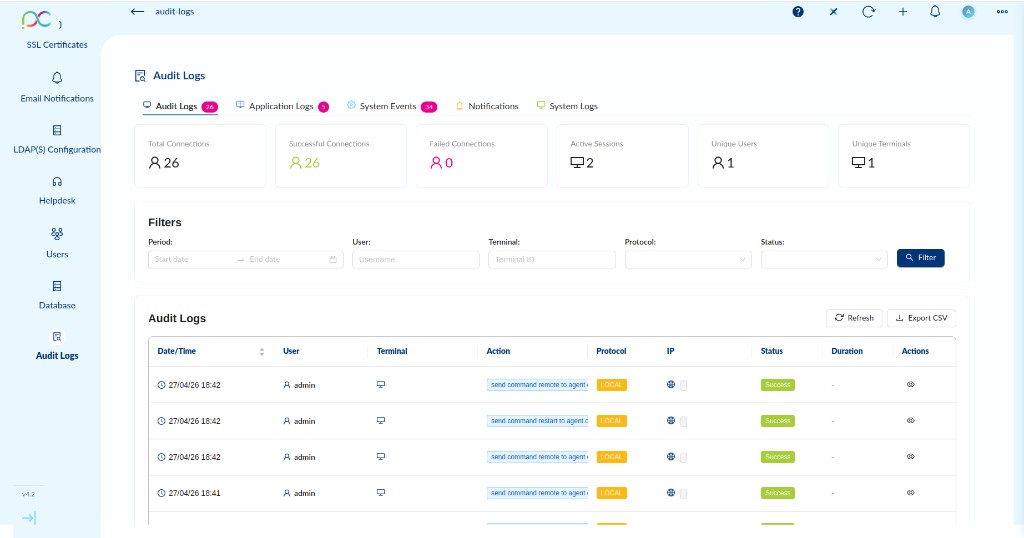
The Audit Logs page (Settings sidebar) is divided into five tabs. All tabs offer Export CSV and Refresh buttons.
Tab 1 — Audit Logs
Tracks all connection activity. Live counters at the top:
- Total Connections — All connection attempts in the selected period.
- Successful Connections — Connections that completed successfully.
- Failed Connections — Connections that were rejected or timed out.
- Active Sessions — Currently open sessions.
- Unique Users — Distinct users who connected.
- Unique Terminals — Distinct devices involved.
Filters: Period (start/end date), User, Terminal (ID), Protocol, Status. Click Filter to apply. Columns: Date/Time, User, Terminal, Action, Protocol, IP, Status, Duration, Actions.
Tab 2 — Application Logs
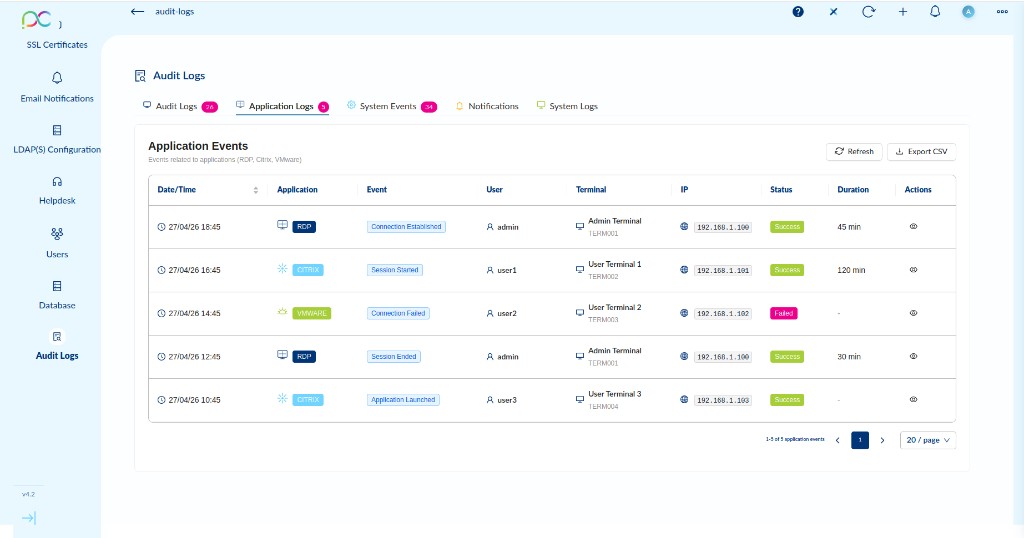
Events related to applications (RDP, Citrix, VMware). Columns: Date/Time, Application (with protocol badge), Event (Connection Established / Session Started / Connection Failed / Session Ended / Application Launched), User, Terminal, IP, Status, Duration, Actions.
Tab 3 — System Events
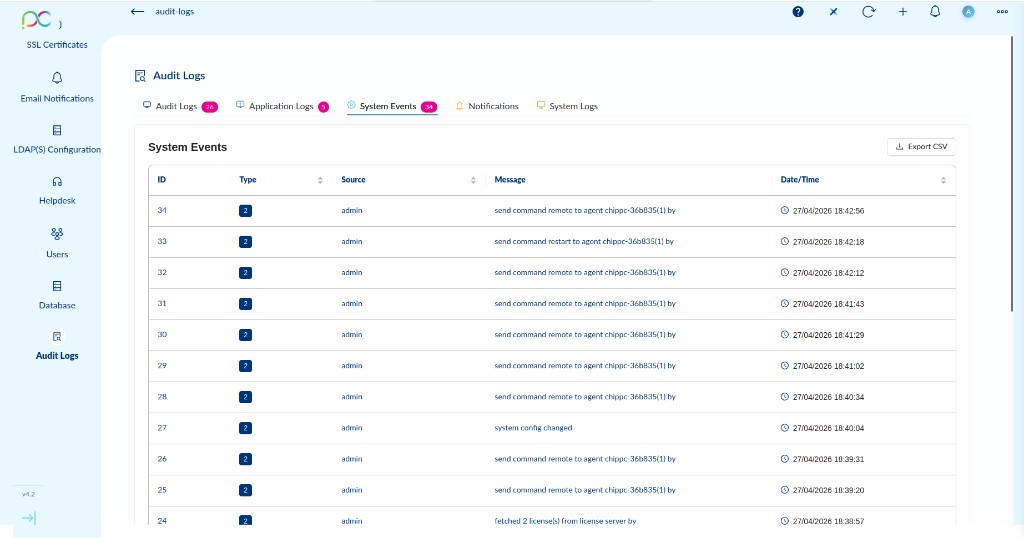
Internal server events triggered by administrators or the system itself. Columns: ID (sequential), Type (numbered badge), Source (admin username or system), Message (full event description), Date/Time. Examples: send command remote to agent, send command restart to agent, system config changed, fetched licenses from license server.
Tab 4 — Notifications
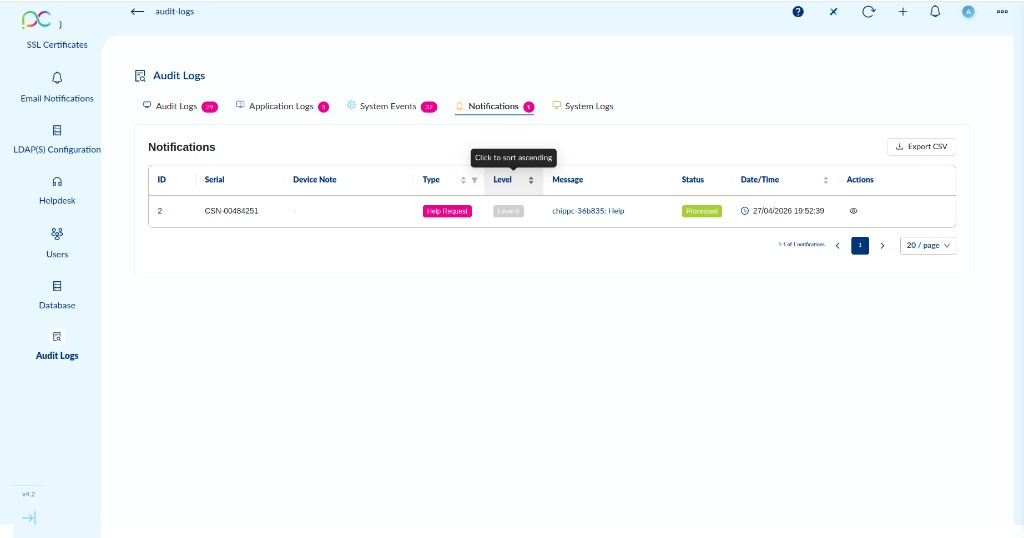
Alerts and requests sent by devices to the server. Columns: ID, Serial (device serial number), Device Note, Type (e.g. Help Request), Level, Message, Status (Processed / Pending), Date/Time, Actions.
Tab 5 — System Logs
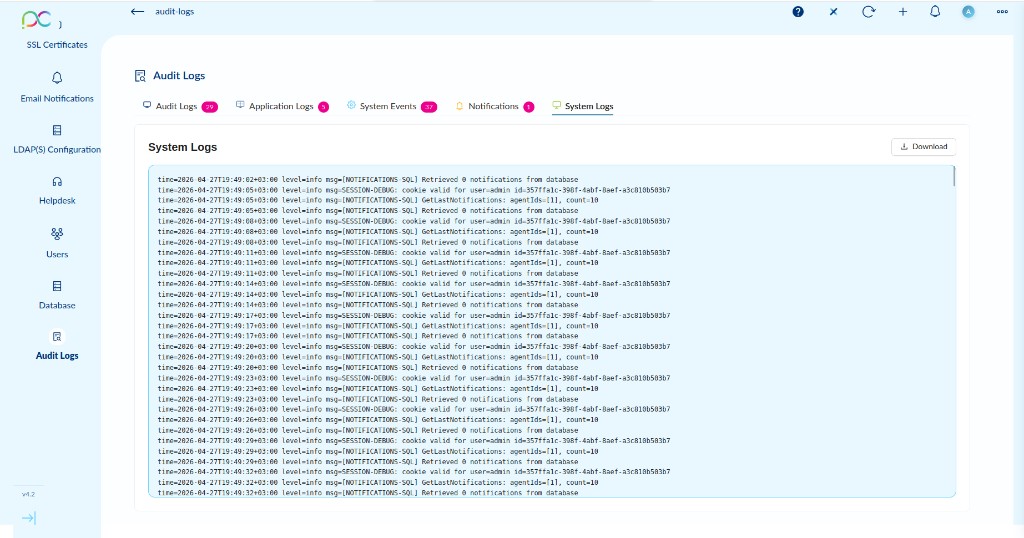
Raw text output from the Xcalibur server process — equivalent to reading the server log file directly. Each line includes timestamp, log level (info, debug, warn, error), and the message. Click Download to save the full log file for offline analysis or sharing with ChipPC support.
La page Audit Logs comporte cinq onglets. Tous proposent Export CSV et Refresh.
Onglet 1 — Audit Logs
Suivi de toute l'activité de connexion. Compteurs en temps réel : Total Connections, Successful Connections, Failed Connections, Active Sessions, Unique Users, Unique Terminals. Filtres : Période, Utilisateur, Terminal, Protocole, Statut.
Onglet 2 — Application Logs
Événements liés aux applications (RDP, Citrix, VMware) : Connection Established, Session Started, Connection Failed, Session Ended, Application Launched. Colonnes : Date/Heure, Application, Événement, Utilisateur, Terminal, IP, Statut, Durée.
Onglet 3 — System Events
Événements internes déclenchés par les administrateurs ou le système. Colonnes : ID, Type, Source, Message, Date/Heure. Exemples : send command remote to agent, system config changed, fetched licenses from license server.
Onglet 4 — Notifications
Alertes et demandes envoyées par les appareils au serveur. Colonnes : ID, Numéro de série, Note appareil, Type (ex. Help Request), Niveau, Message, Statut, Date/Heure. Les Help Requests peuvent être converties en tickets Helpdesk depuis le menu Actions.
Onglet 5 — System Logs
Sortie texte brute du processus serveur Xcalibur avec horodatage, niveau de log (info, debug, warn, error) et message. Cliquez sur Download pour enregistrer le fichier journal complet.
Die Seite Audit Logs hat fünf Tabs: Audit Logs (Verbindungsereignisse, Live-KPI-Zähler, Filter), Application Logs (RDP/Citrix/VMware-Sitzungsereignisse), System Events (interne Server-Ereignisse), Notifications (Geräte-Benachrichtigungen, z.B. Help Requests), System Logs (Rohtext-Serverlog, herunterladbar). Alle Tabs bieten Export CSV.
La página Audit Logs tiene cinco pestañas: Audit Logs (eventos de conexión, contadores KPI en vivo, filtros), Application Logs (sesiones RDP/Citrix/VMware), System Events (eventos internos del servidor), Notifications (alertas de dispositivos, p. ej. Help Requests), System Logs (registro sin procesar del servidor, descargable). Todas las pestañas ofrecen Export CSV.
A página Audit Logs tem cinco separadores: Audit Logs (eventos de ligação, contadores KPI em tempo real, filtros), Application Logs (sessões RDP/Citrix/VMware), System Events (eventos internos do servidor), Notifications (alertas de dispositivos, p. ex. Help Requests), System Logs (registo bruto do servidor, transferível). Todos os separadores oferecem Export CSV.
La pagina Audit Logs ha cinque schede: Audit Logs (eventi di connessione, contatori KPI live, filtri), Application Logs (sessioni RDP/Citrix/VMware), System Events (eventi interni del server), Notifications (alert dei dispositivi, es. Help Requests), System Logs (log grezzo del server, scaricabile). Tutte le schede offrono Export CSV.
לדף Audit Logs יש חמש לשוניות: Audit Logs (אירועי חיבור, מונים חיים, מסננים), Application Logs (סשנים RDP/Citrix/VMware), System Events (אירועים פנימיים של השרת), Notifications (התראות ממכשירים, כגון Help Requests), System Logs (לוג גולמי של השרת, להורדה). כל הלשוניות מציעות Export CSV.
Security Policies Politiques de sécurité Sicherheitsrichtlinien Políticas de seguridad Políticas de segurança Politiche di sicurezza מדיניות אבטחה
| PolicyPolitiqueRichtliniePolíticaPolíticaPoliticaמדיניות | DescriptionDescriptionBeschreibungDescripciónDescriçãoDescrizioneתיאור | LocationEmplacementOrtUbicaciónLocalizaçãoPosizioneמיקום |
|---|---|---|
| MAC Whitelist | Only approve devices whose MAC address is pre-registered. Three modes: Disabled (all devices accepted), Auto-approve (new devices auto-register), Manual (admin must explicitly approve each device).Approuver uniquement les appareils dont l'adresse MAC est pré-enregistrée. Trois modes : Désactivé, Auto-approuver, Manuel.Nur Geräte mit vorregistrierter MAC genehmigen. Modi: Deaktiviert, Auto-Genehmigung, Manuell.Solo aprobar dispositivos con MAC preregistrada. Modos: Desactivado, Auto-aprobar, Manual.Apenas aprovar dispositivos com MAC pré-registado. Modos: Desativado, Auto-aprovar, Manual.Solo approvare dispositivi con MAC preregistrato. Modalità: Disabilitato, Auto-approvazione, Manuale.אישור מכשירים שכתובת ה-MAC שלהם רשומה מראש בלבד. שלושה מצבים: מנוטרל (כל המכשירים מתקבלים), אישור אוטומטי (מכשירים חדשים נרשמים אוטומטית), ידני (מנהל חייב לאשר כל מכשיר במפורש). | Server Settings → Device RegistrationParamètres serveur → Enregistrement appareilsServereinstellungen → GeräteregistrierungConfiguración servidor → Registro de dispositivosDefinições servidor → Registo de dispositivosImpostazioni server → Registrazione dispositiviהגדרות שרת ← רישום מכשירים |
| USB Policy | Allow or block USB device classes per thin client or group: Storage (block data exfiltration), Printers, Audio, SmartCards, HID (keyboard/mouse — always allow recommended). Granular per-group overrides possible.Autoriser ou bloquer les classes d'appareils USB par client léger ou groupe : Stockage, Imprimantes, Audio, SmartCards, HID. Surcharges granulaires par groupe possibles.USB-Geräteklassen zulassen/blockieren: Speicher, Drucker, Audio, SmartCards, HID. Granulare Gruppenüberschreibungen möglich.Permitir/bloquear clases USB por dispositivo o grupo: Almacenamiento, Impresoras, Audio, SmartCards, HID.Permitir/bloquear classes USB por dispositivo ou grupo: Armazenamento, Impressoras, Áudio, SmartCards, HID.Consenti/blocca classi USB per dispositivo o gruppo: Archiviazione, Stampanti, Audio, SmartCard, HID.אישור או חסימת סוגי התקני USB לפי thin client או קבוצה: Storage (למניעת דליפת מידע), Printers, Audio, SmartCards, HID (מקלדת/עכבר — מומלץ תמיד לאפשר). אפשרויות עקיפה מפורטות לפי קבוצה. | Devices → Settings tab → USB PolicyAppareils → Onglet Paramètres → Politique USBGeräte → Einstellungen → USB-RichtlinieDispositivos → Pestaña Configuración → Política USBDispositivos → Separador Definições → Política USBDispositivi → Scheda Impostazioni → Politica USBמכשירים ← לשונית הגדרות ← מדיניות USB |
| 802.1X NAC | Port-based Network Access Control via RADIUS. Xcalibur pushes 802.1X certificates to ThinX OS devices. Supports EAP-TLS (certificate), EAP-PEAP (MSCHAPv2). Works for both wired (Ethernet) and wireless (WiFi) interfaces.Contrôle d'accès réseau basé sur les ports via RADIUS. Xcalibur pousse les certificats 802.1X vers les appareils ThinX OS. Supporte EAP-TLS, EAP-PEAP. Fonctionne pour les interfaces câblées et sans fil.Portbasierte Netzwerkzugangskontrolle via RADIUS. EAP-TLS (Zertifikat), EAP-PEAP (MSCHAPv2). Für kabelgebundene und WLAN-Schnittstellen.Control de acceso a la red basado en puertos vía RADIUS. EAP-TLS, EAP-PEAP. Para interfaces cableadas e inalámbricas.Controlo de acesso à rede baseado em portas via RADIUS. EAP-TLS, EAP-PEAP. Para interfaces com e sem fios.Controllo accesso alla rete basato su porta via RADIUS. EAP-TLS, EAP-PEAP. Per interfacce cablate e wireless.בקרת גישה לרשת מבוססת-פורט דרך RADIUS. Xcalibur מדחיף אישורי 802.1X למכשירי ThinX OS. תומך ב-EAP-TLS (אישור) ו-EAP-PEAP (MSCHAPv2). פועל לממשקים קוויים (Ethernet) ואלחוטיים (WiFi). | Server Settings → 802.1X / Network ProfilesParamètres serveur → 802.1X / Profils réseauServereinstellungen → 802.1X / NetzwerkprofileConfiguración servidor → 802.1X / Perfiles de redDefinições servidor → 802.1X / Perfis de redeImpostazioni server → 802.1X / Profili di reteהגדרות שרת ← 802.1X / פרופילי רשת |
| 2FA (TOTP) | Time-based One-Time Password for admin console logins. Users scan a QR code with any TOTP app (Google Authenticator, Authy, etc.). Each login requires the current 6-digit code. Backup codes provided for recovery.Mot de passe à usage unique basé sur le temps pour les connexions admin. Les utilisateurs scannent un code QR avec une app TOTP. Chaque connexion nécessite le code à 6 chiffres actuel. Codes de secours fournis.Zeitbasiertes Einmalpasswort für Admin-Anmeldungen. QR-Code mit TOTP-App scannen. 6-stelliger Code bei jeder Anmeldung. Backup-Codes verfügbar.Contraseña de un solo uso basada en tiempo para inicios de sesión de administrador. Escanear código QR con app TOTP. Código de 6 dígitos en cada inicio de sesión.Palavra-passe de uso único baseada no tempo para inícios de sessão de administrador. Digitalizar código QR com app TOTP. Código de 6 dígitos em cada início de sessão.Password monouso basata sul tempo per gli accessi admin. Scansiona il codice QR con un'app TOTP. Codice a 6 cifre per ogni accesso.סיסמה חד-פעמית מבוססת-זמן לכניסות לממשק הניהול. המשתמשים סורקים קוד QR עם כל אפליקציית TOTP (Google Authenticator, Authy וכד'). כל כניסה מחייבת את הקוד בן 6 הספרות הנוכחי. קודי גיבוי מסופקים לשחזור. | Users → Edit User → Enable 2FAUtilisateurs → Modifier utilisateur → Activer 2FABenutzer → Benutzer bearbeiten → 2FA aktivierenUsuarios → Editar usuario → Habilitar 2FAUtilizadores → Editar utilizador → Ativar 2FAUtenti → Modifica utente → Abilita 2FAמשתמשים ← עריכת משתמש ← הפעל 2FA |
| Login Lockout | Locks a user account after N consecutive failed login attempts. Configurable threshold (default: 5). Locked accounts must be manually unlocked by an admin or wait for the auto-unlock duration. All lockout events are logged in Audit tab.Verrouille un compte utilisateur après N tentatives de connexion échouées consécutives. Seuil configurable (défaut : 5). Les comptes verrouillés doivent être déverrouillés manuellement par un admin ou attendre la durée de déverrouillage automatique.Sperrt Benutzerkonto nach N aufeinanderfolgenden fehlgeschlagenen Anmeldeversuchen. Konfigurierbarer Schwellenwert (Standard: 5).Bloquea una cuenta de usuario después de N intentos fallidos consecutivos. Umbral configurable (predeterminado: 5).Bloqueia uma conta de utilizador após N tentativas de início de sessão falhadas consecutivas. Limiar configurável (padrão: 5).Blocca un account utente dopo N tentativi di accesso falliti consecutivi. Soglia configurabile (predefinita: 5).נועל חשבון משתמש לאחר N ניסיונות כניסה כושלים רצופים. סף ניתן להגדרה (ברירת מחדל: 5). חשבונות נעולים חייבים להיפתח ידנית על ידי מנהל או להמתין לפתיחה אוטומטית. כל אירועי הנעילה נרשמים בלשונית Audit. | Server Settings → Security → Login PolicyParamètres serveur → Sécurité → Politique de connexionServereinstellungen → Sicherheit → AnmelderichtlinieConfiguración servidor → Seguridad → Política de inicio de sesiónDefinições servidor → Segurança → Política de início de sessãoImpostazioni server → Sicurezza → Politica di accessoהגדרות שרת ← אבטחה ← מדיניות כניסה |
| Session Timeout (Idle) | Enforced idle timeout for admin sessions. The session expiry is extended only by real user activity (mouse, keyboard, touch) — background polling (dashboard widgets, notifications, WebSocket) does not reset the timer. A warning modal appears 1 minute before expiry. When the session lapses, the next API call (even a background poll) returns 401 and the browser redirects to the login page. Délai d'inactivité appliqué pour les sessions admin. L'expiration n'est prolongée que par une activité réelle de l'utilisateur (souris, clavier, touch) — le polling automatique (widgets, notifications, WebSocket) ne réinitialise pas le timer. Un modal d'avertissement apparaît 1 minute avant l'expiration. À l'expiration, le prochain appel API retourne 401 et le navigateur est redirigé vers la page de connexion. Erzwungener Leerlauf-Timeout für Admin-Sitzungen. Verlängerung nur durch echte Benutzeraktivität (Maus, Tastatur, Touch) — Hintergrund-Polling verlängert den Timer nicht. Warnungs-Modal 1 Minute vor Ablauf. Tiempo de espera de inactividad forzado para sesiones admin. Solo la actividad real del usuario extiende la sesión — el polling en segundo plano no reinicia el temporizador. Modal de advertencia 1 minuto antes del vencimiento. Tempo limite de inatividade forçado para sessões admin. Apenas a atividade real do utilizador estende a sessão — o polling em segundo plano não reinicia o temporizador. Modal de aviso 1 minuto antes do vencimento. Timeout di inattività forzato per le sessioni admin. Solo l'attività reale dell'utente estende la sessione — il polling in background non reimposta il timer. Modal di avviso 1 minuto prima della scadenza. זמן אי-פעילות מאולץ לסשנים של מנהל. פקיעת הסשן מוארכת רק על ידי פעילות אמיתית של המשתמש (עכבר, מקלדת, touch) — polling ברקע (widgets, התראות, WebSocket) אינו מאפס את הטיימר. מודל אזהרה מופיע דקה לפני הפקיעה. עם פקיעת הסשן, קריאת ה-API הבאה מחזירה 401 והדפדפן מועבר לדף הכניסה. | Server Settings → Security → Session DurationParamètres serveur → Sécurité → Session DurationServereinstellungen → Sicherheit → Session DurationConfiguración servidor → Seguridad → Session DurationDefinições servidor → Segurança → Session DurationImpostazioni server → Sicurezza → Session Durationהגדרות שרת ← אבטחה ← Session Duration |
SSL Certificate Configuration Configuration du certificat SSL SSL-Zertifikat konfigurieren Configuración del certificado SSL Configuração do certificado SSL Configurazione certificato SSL הגדרת אישור SSL
Xcalibur uses HTTPS for the admin web console and WSS for agent communication, both on port 1013. Both share the same TLS certificate and require a valid certificate in production.
Import a custom certificate
- Go to Server Settings → Certificates
- Upload your Certificate file (
.pemor.crt) - Upload the matching Private key (
.key) - Optionally upload the CA chain (
.ca-bundleor intermediate cert) - Click Apply — the server restarts HTTPS with the new certificate
- Verify the padlock in your browser shows the correct certificate issuer
Let's Encrypt (free CA)
- Run Certbot externally:
certbot certonly --standalone -d xcalibur.yourdomain.com - Import
/etc/letsencrypt/live/yourdomain.com/fullchain.pemas the certificate - Import
/etc/letsencrypt/live/yourdomain.com/privkey.pemas the private key - Set up a cron job to renew and re-import before the 90-day expiry
Xcalibur utilise HTTPS pour la console web admin et WSS pour la communication des agents, tous deux sur le port 1013. Les deux partagent le même certificat TLS et nécessitent un certificat valide en production.
- Aller dans Paramètres serveur → Certificats
- Uploader le fichier certificat (
.pemou.crt) - Uploader la clé privée correspondante (
.key) - Optionnellement uploader la chaîne CA (
.ca-bundle) - Cliquer Appliquer — le serveur redémarre avec le nouveau certificat
- Servereinstellungen → Zertifikate
- Zertifikatdatei (
.pem/.crt) hochladen - Privaten Schlüssel (
.key) hochladen - CA-Kette optional hochladen
- Anwenden klicken
Let's Encrypt: Certbot extern ausführen, fullchain.pem + privkey.pem importieren.
- Configuración servidor → Certificados
- Subir certificado (
.pem/.crt) - Subir clave privada (
.key) - Cargar cadena CA opcionalmente
- Hacer clic en Aplicar
Let's Encrypt: Ejecutar Certbot externamente, importar fullchain.pem + privkey.pem.
- Definições servidor → Certificados
- Carregar certificado (
.pem/.crt) - Carregar chave privada (
.key) - Opcionalmente carregar cadeia CA
- Clicar em Aplicar
- Impostazioni server → Certificati
- Carica certificato (
.pem/.crt) - Carica chiave privata (
.key) - Carica catena CA opzionalmente
- Clicca Applica
Xcalibur משתמש ב-HTTPS לממשק ניהול האינטרנטי ו-WSS לתקשורת Agent, שניהם על פורט 1013. שניהם משתפים את אותו אישור TLS ומצריכים אישור תקף בסביבת ייצור.
ייבוא אישור מותאם אישית
- עבור אל הגדרות שרת ← אישורים
- העלה את קובץ האישור (
.pemאו.crt) - העלה את המפתח הפרטי המתאים (
.key) - אופציונלי: העלה את שרשרת ה-CA (
.ca-bundleאו אישור ביניים) - לחץ Apply — השרת מופעל מחדש עם האישור החדש
- ודא שסמל המנעול בדפדפן מציג את מנפיק האישור הנכון
Let's Encrypt (CA חינמי)
- הרץ Certbot חיצונית:
certbot certonly --standalone -d xcalibur.yourdomain.com - ייבא את
/etc/letsencrypt/live/yourdomain.com/fullchain.pemכאישור - ייבא את
/etc/letsencrypt/live/yourdomain.com/privkey.pemכמפתח פרטי - הגדר cron job לחידוש וייבוא מחדש לפני תפוגת 90 הימים
IP Scopes — Access Restriction Plages IP — Restriction d'accès IP-Bereiche — Zugriffsbeschränkung Rangos IP — Restricción de acceso Gamas IP — Restrição de acesso Ambiti IP — Restrizione accesso IP Scopes — הגבלת גישה
IP Scopes restrict which source IP addresses are allowed to access the Xcalibur admin console. This prevents unauthorized access even if credentials are compromised.
- Define one or more IP ranges (CIDR notation:
192.168.1.0/24) - Named scopes for easy management (e.g., "IT Department", "VPN Range")
- Scopes can be assigned to specific admin users or applied globally
- Failed access attempts from blocked IPs are logged in the Audit tab
Les plages IP restreignent les adresses IP sources autorisées à accéder à la console admin Xcalibur.
- Définir une ou plusieurs plages IP (notation CIDR :
192.168.1.0/24) - Plages nommées pour une gestion facile (ex: "Service IT", "Plage VPN")
- Les plages peuvent être assignées à des utilisateurs admin spécifiques ou appliquées globalement
- Les tentatives d'accès bloquées sont enregistrées dans l'onglet Audit
IP-Bereiche begrenzen den Zugriff auf die Admin-Konsole auf bestimmte IP-Adressen (CIDR). Blockierte Zugriffsversuche werden im Audit-Tab protokolliert.
Los rangos IP restringen qué direcciones IP pueden acceder a la consola de administración (notación CIDR). Los intentos bloqueados se registran en la pestaña de Auditoría.
As gamas IP restringem quais endereços IP podem aceder à consola de administração (notação CIDR). As tentativas bloqueadas são registadas na aba Auditoria.
Gli ambiti IP limitano quali indirizzi IP possono accedere alla console di amministrazione (notazione CIDR). I tentativi bloccati vengono registrati nella scheda Audit.
IP Scopes מגבילים אילו כתובות IP מקור מורשות לגשת לממשק הניהול של Xcalibur. הדבר מונע גישה בלתי מורשית גם אם פרטי הכניסה נפגעו.
- הגדר טווח IP אחד או יותר (סימון CIDR:
192.168.1.0/24) - Scopes עם שם לניהול נוח (לדוגמה: "מחלקת IT", "טווח VPN")
- ניתן להקצות Scopes למשתמשי מנהל ספציפיים או להחיל גלובלית
- ניסיונות גישה שנחסמו נרשמים בלשונית Audit