Fleet ManagementGestion du ParcGeräteverwaltungGestión del ParqueGestão da FrotaGestione Parcoניהול צי מכשירים
Video: Fleet Management & Device Details Video: Gestion du Parc & Détails Appareil Video: Geräteverwaltung & Gerätedetails Video: Gestión del Parque & Detalles del Dispositivo Video: Gestão da Frota & Detalhes do Dispositivo Video: Gestione Parco & Dettagli Dispositivo Video: ניהול צי ופרטי מכשיר
Devices list, approving a pending device, group assignment, opening Device Settings, and the Information panel (including Touchscreen inventory fields when present).
Liste Appareils, approbation, groupes, paramètres appareil et panneau Information (dont Touchscreen si présent).
Geräteliste, Genehmigung, Gruppen, Geräteeinstellungen und Informationspanel.
Lista de dispositivos, aprobación, grupos, configuración e panel de información.
Lista de dispositivos, aprovação, grupos, definições e painel de informação.
Lista dispositivi, approvazione, gruppi, impostazioni e pannello informazioni.
רשימת Devices, אישור מכשיר ממתין, שיוך לקבוצה, Device Settings ולוח Information (כולל שדות Touchscreen כשקיימים).
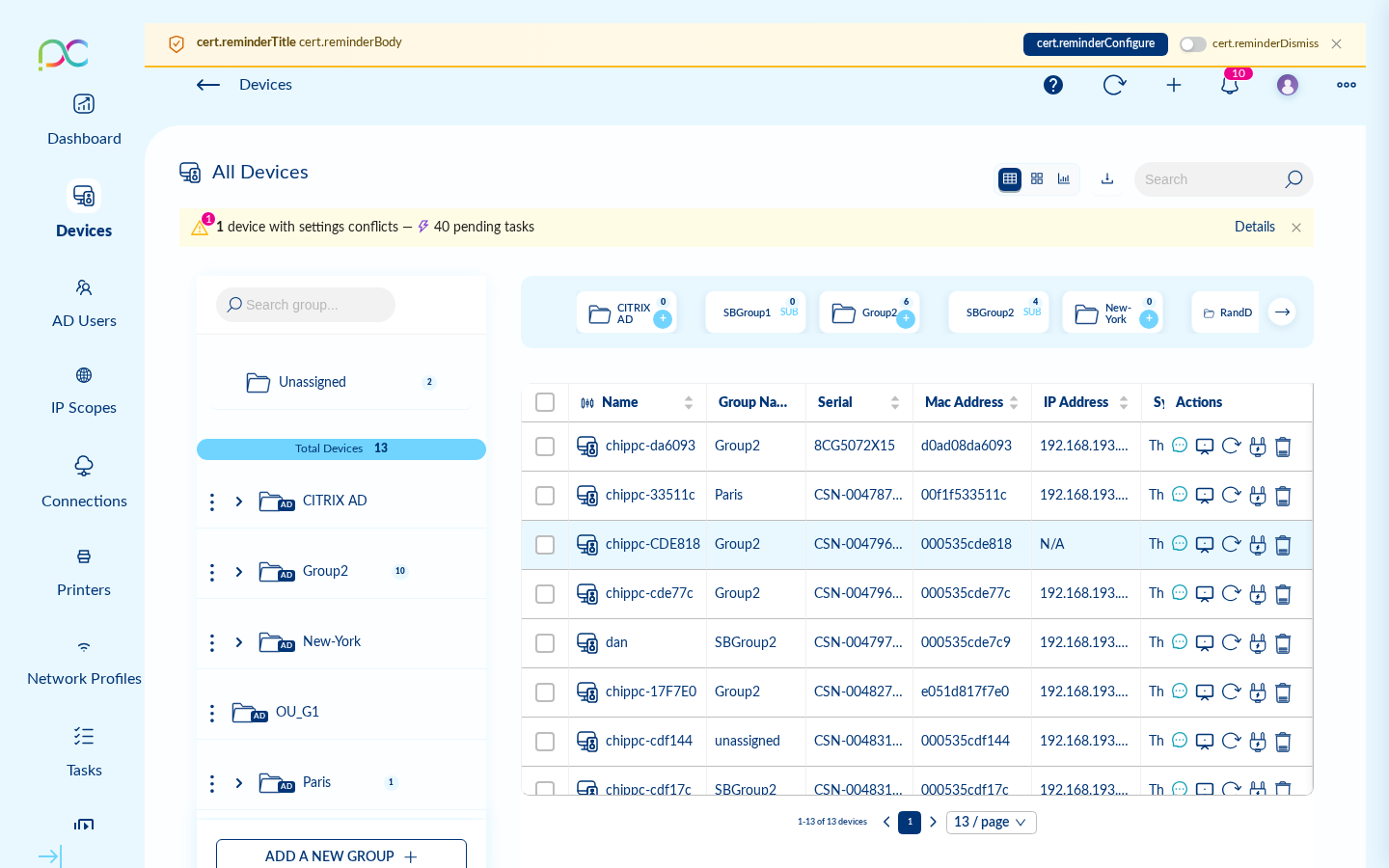
Device Approval QueueFile d'approbation des appareilsGerätegenehmigungswarteschlangeCola de aprobación de dispositivosFila de aprovação de dispositivosCoda di approvazione dispositiviתור אישור מכשירים
When a new agent connects to the server for the first time, it enters the Unapproved group. Administrators must approve devices before they can receive tasks or connections.
MAC Whitelist — Devices with a pre-registered MAC address are automatically approved on first connection only (not on reconnect). Import/export via CSV.
Lorsqu'un nouvel agent se connecte au serveur pour la première fois, il entre dans le groupe Non approuvé. Les administrateurs doivent approuver les appareils avant qu'ils puissent recevoir des tâches ou des connexions.
Whitelist MAC — Les appareils avec une adresse MAC pré-enregistrée sont approuvés automatiquement à la première connexion uniquement (pas à la reconnexion). Import/export via CSV.
Wenn ein neuer Agent sich zum ersten Mal mit dem Server verbindet, kommt er in die Gruppe Nicht genehmigt. Administratoren müssen Geräte genehmigen.
Cuando un nuevo agente se conecta al servidor por primera vez, entra en el grupo No aprobado. Los administradores deben aprobar los dispositivos.
Quando um novo agente se conecta ao servidor pela primeira vez, entra no grupo Não aprovado. Os administradores devem aprovar os dispositivos.
Quando un nuovo agente si connette al server per la prima volta, entra nel gruppo Non approvato. Gli amministratori devono approvare i dispositivi.
כאשר agent חדש מתחבר לשרת לראשונה, הוא נכנס לקבוצה Non Approved (לא מאושר). מנהלים חייבים לאשר מכשירים לפני שיוכלו לקבל משימות או חיבורים.
MAC Whitelist — מכשירים עם כתובת MAC רשומה מראש מאושרים אוטומטית בחיבור הראשון בלבד (לא בהתחברות מחדש). ייבוא/ייצוא דרך CSV.
IP Scopes — Automatic Group Assignment IP Scopes — Assignation automatique de groupe IP-Bereiche — Automatische Gruppenzuweisung Ámbitos IP — Asignación automática de grupos Âmbitos IP — Atribuição automática de grupos Ambiti IP — Assegnazione automatica di gruppi IP Scopes — שיוך אוטומטי לקבוצות
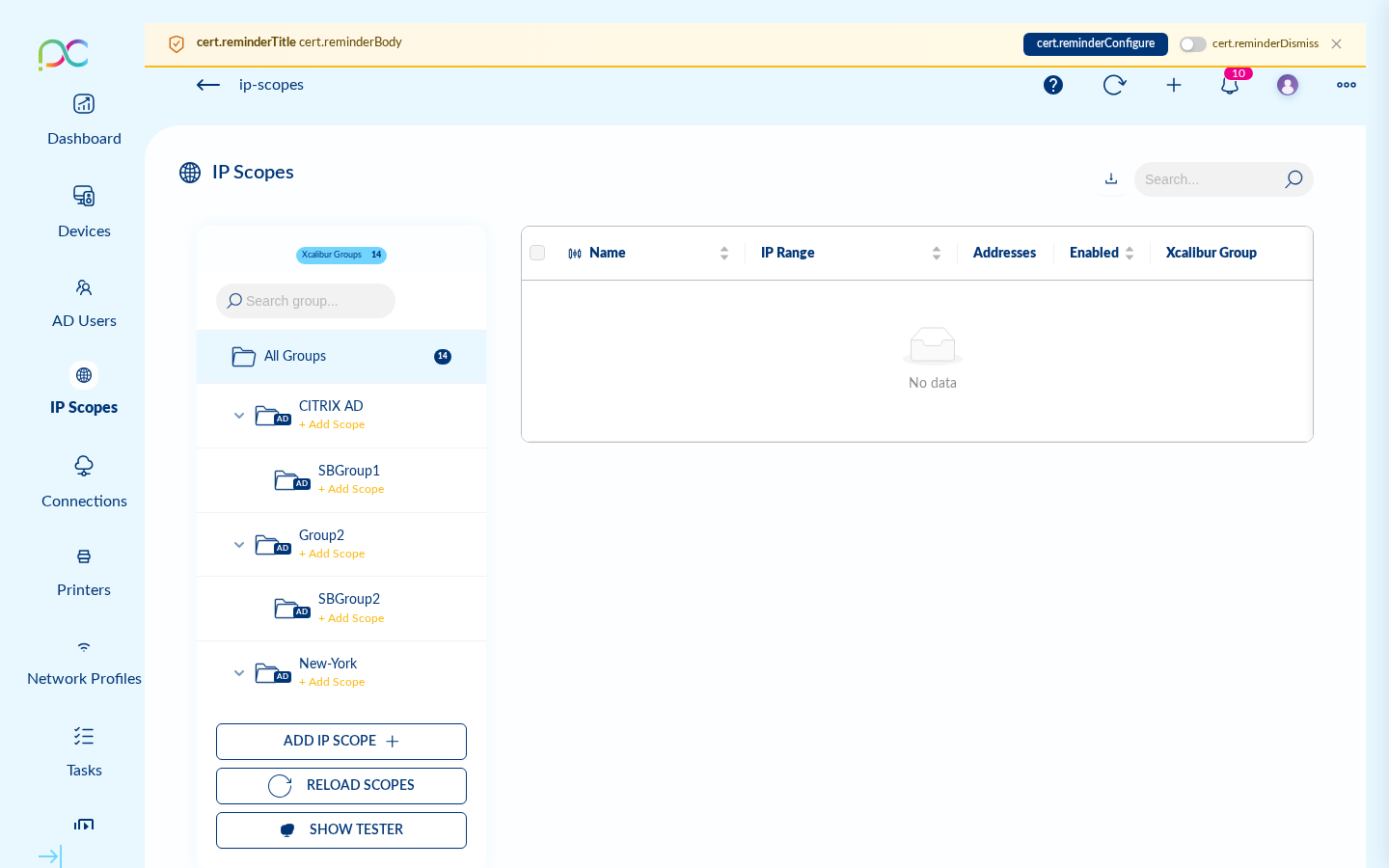
IP Scopes define IP address ranges that automatically assign connecting devices to a specific Xcalibur group and/or Active Directory group when they connect for the first time (or reconnect).
Three buttons are available at the bottom of the scope list:
- ADD IP SCOPE — Opens the New IP Scope dialog (see below).
- RELOAD SCOPES — Forces the server to re-evaluate all devices against the current scope rules.
- SHOW TESTER — Opens the built-in Auto-Assignment Tester: enter any IP to see which scope (if any) would match it.
Creating a New IP Scope
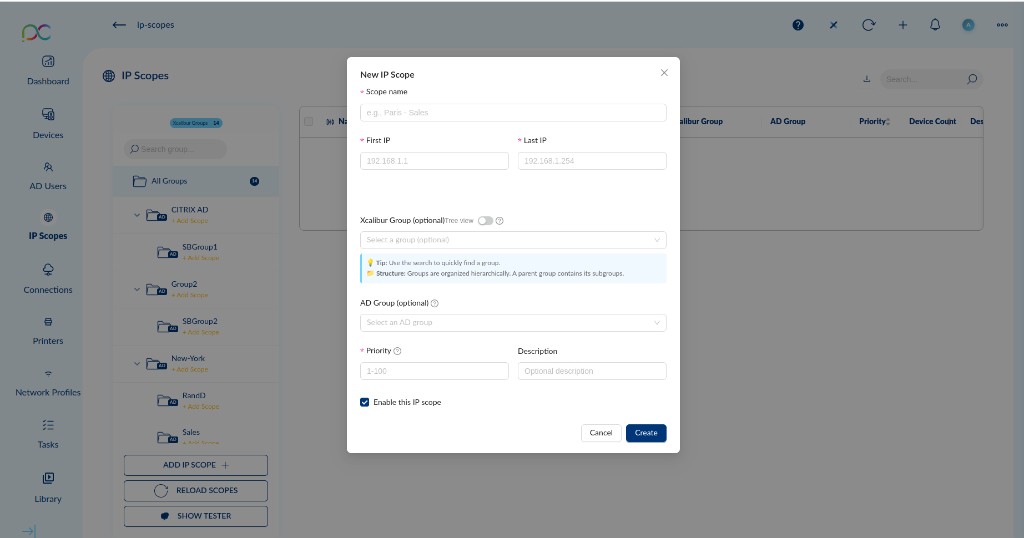
| Field | Required | Description |
|---|---|---|
| Scope name | Yes | Descriptive label for this scope (e.g. Paris – Sales). |
| First IP | Yes | Start of the IP range (e.g. 192.168.1.1). |
| Last IP | Yes | End of the IP range (e.g. 192.168.1.254). A single device scope uses the same IP for both. |
| Xcalibur Group | No | The Xcalibur device group to assign matching devices to. Toggle Tree view to browse the group hierarchy. A parent group contains its subgroups. |
| AD Group | No | An Active Directory group to assign matching devices to (requires LDAP integration). |
| Priority | Yes | Integer between 1 and 100. When multiple scopes overlap (a device IP falls in more than one range), the scope with the highest priority wins. |
| Description | No | Optional free-text note about this scope. |
| Enable this IP scope | — | Checkbox to activate the scope immediately on creation. Uncheck to save it as disabled. |
Click Create to save. The scope takes effect immediately for new connections and on the next RELOAD SCOPES.
Les IP Scopes définissent des plages d'adresses IP qui assignent automatiquement les appareils à un groupe Xcalibur et/ou un groupe Active Directory lors de leur connexion.
Trois boutons sont disponibles en bas de la liste : ADD IP SCOPE, RELOAD SCOPES (réapplique les règles à tous les appareils) et SHOW TESTER (testeur d'auto-assignation).
Créer un nouveau scope IP
| Champ | Requis | Description |
|---|---|---|
| Scope name | Oui | Nom descriptif du scope (ex. Paris – Sales). |
| First IP | Oui | Début de la plage IP (ex. 192.168.1.1). |
| Last IP | Oui | Fin de la plage IP (ex. 192.168.1.254). Pour un seul appareil, utilisez la même IP. |
| Xcalibur Group | Non | Groupe Xcalibur cible. Activez Tree view pour naviguer dans la hiérarchie. |
| AD Group | Non | Groupe Active Directory cible (nécessite l'intégration LDAP). |
| Priority | Oui | Entier de 1 à 100. En cas de chevauchement, le scope avec la priorité la plus haute est appliqué. |
| Description | Non | Note libre sur ce scope. |
| Enable this IP scope | — | Cocher pour activer immédiatement à la création. |
Cliquez sur Create pour enregistrer. Le scope prend effet immédiatement pour les nouvelles connexions et au prochain RELOAD SCOPES.
IP-Bereiche weisen verbindende Geräte automatisch einer Xcalibur- oder AD-Gruppe zu. Schaltflächen: ADD IP SCOPE, RELOAD SCOPES, SHOW TESTER. Felder beim Erstellen: Name, Erste IP, Letzte IP, Xcalibur-Gruppe (optional, mit Baumansicht), AD-Gruppe (optional), Priorität (1–100, höchste gewinnt bei Überlappung), Beschreibung, Aktivieren.
Los ámbitos IP asignan automáticamente los dispositivos que se conectan a un grupo Xcalibur o AD. Botones: ADD IP SCOPE, RELOAD SCOPES, SHOW TESTER. Campos al crear: nombre, primera IP, última IP, grupo Xcalibur (opcional, vista árbol), grupo AD (opcional), prioridad (1–100, la más alta gana en solapamiento), descripción, habilitar.
Os âmbitos IP atribuem automaticamente os dispositivos que se ligam a um grupo Xcalibur ou AD. Botões: ADD IP SCOPE, RELOAD SCOPES, SHOW TESTER. Campos ao criar: nome, primeiro IP, último IP, grupo Xcalibur (opcional, vista em árvore), grupo AD (opcional), prioridade (1–100, a mais alta vence em sobreposição), descrição, ativar.
Gli ambiti IP assegnano automaticamente i dispositivi che si connettono a un gruppo Xcalibur o AD. Pulsanti: ADD IP SCOPE, RELOAD SCOPES, SHOW TESTER. Campi per la creazione: nome, primo IP, ultimo IP, gruppo Xcalibur (opzionale, vista ad albero), gruppo AD (opzionale), priorità (1–100, la più alta vince in caso di sovrapposizione), descrizione, abilita.
IP Scopes משייכים אוטומטית מכשירים מתחברים לקבוצת Xcalibur או AD. כפתורים: ADD IP SCOPE, RELOAD SCOPES, SHOW TESTER. שדות ביצירה: שם, IP ראשון, IP אחרון, קבוצת Xcalibur (אופציונלי, תצוגת עץ), קבוצת AD (אופציונלי), עדיפות (1–100, הגבוהה ביותר מנצחת בחפיפה), תיאור, הפעלה.
Device DiscoveryDécouverte d'appareilsGeräteerkennungDescubrimiento de dispositivosDescoberta de dispositivosScoperta dispositiviגילוי מכשירים
Discovery methods
- PSK Discovery — AES-128 encrypted UDP broadcast with shared pre-shared key; timestamp validation prevents replay attacks
- UDP Discovery — Broadcast on local subnet without encryption
- SNMP Discovery — Standard SNMP queries for network device inventory
- Locator Service — Persistent registration service for devices behind NAT
Discovered devices appear in the Discovered Clients queue and can be manually approved or auto-approved via MAC whitelist.
Méthodes de découverte
- Découverte PSK — Diffusion UDP chiffrée AES-128 avec clé pré-partagée ; validation d'horodatage pour prévenir les attaques par rejeu
- Découverte UDP — Diffusion sur le sous-réseau local sans chiffrement
- Découverte SNMP — Requêtes SNMP standard pour l'inventaire des périphériques réseau
- Service Locator — Service d'enregistrement persistant pour les appareils derrière NAT
Erkennungsmethoden
- PSK-Erkennung — AES-128-verschlüsselter UDP-Broadcast mit PSK
- UDP-Erkennung — Broadcast im lokalen Subnetz
- SNMP-Erkennung — Standard-SNMP-Abfragen
- Locator-Dienst — Für Geräte hinter NAT
Métodos de descubrimiento
- Descubrimiento PSK — Difusión UDP cifrada AES-128
- Descubrimiento UDP — Difusión en subred local
- Descubrimiento SNMP — Consultas SNMP estándar
- Servicio Localizador — Para dispositivos detrás de NAT
Métodos de descoberta
- Descoberta PSK — Broadcast UDP cifrado AES-128
- Descoberta UDP — Broadcast na sub-rede local
- Descoberta SNMP — Consultas SNMP padrão
- Serviço Localizador — Para dispositivos atrás de NAT
Metodi di scoperta
- Scoperta PSK — Broadcast UDP cifrato AES-128
- Scoperta UDP — Broadcast nella subnet locale
- Scoperta SNMP — Query SNMP standard
- Servizio Locator — Per dispositivi dietro NAT
שיטות גילוי
- PSK Discovery — שידור UDP מוצפן AES-128 עם מפתח משותף; אימות חותמת זמן למניעת מתקפות Replay
- UDP Discovery — שידור ב-subnet המקומי ללא הצפנה
- SNMP Discovery — שאילתות SNMP סטנדרטיות לאיתור מכשירי רשת
- Locator Service — שירות רישום מתמיד למכשירים מאחורי NAT
מכשירים שהתגלו מופיעים בתור Discovered Clients וניתן לאשרם ידנית או אוטומטית דרך MAC Whitelist.
Device Settings Paramètres de l'appareil Geräteeinstellungen Configuración del dispositivo Definições do dispositivo Impostazioni del dispositivo הגדרות מכשיר
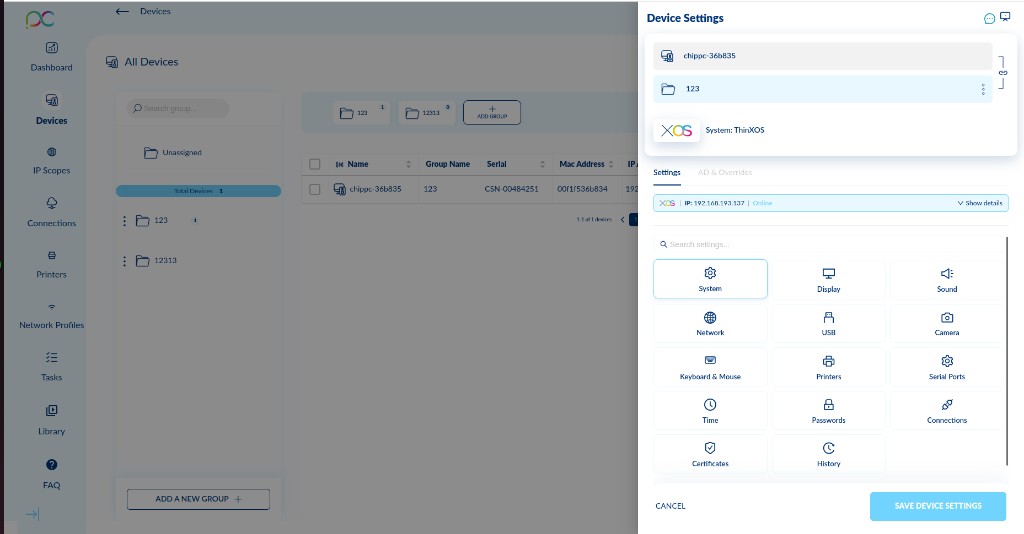
Click on any device in the Devices list to open the Device Settings panel on the right. It shows the device name, group, and OS version at the top, then offers two tabs:
- Settings — Configure the device remotely across all categories below.
- AD & Overrides — Apply Active Directory overrides or group policy exceptions for this device.
The Settings tab is organized into the following categories (searchable via the built-in search bar):
| Category | Description |
|---|---|
| System | OS info, hostname, firmware, power management |
| Display | Resolution, refresh rate, multi-monitor layout |
| Sound | Audio output and input device selection, volume |
| Network | IP configuration (DHCP / static), DNS, proxy, Wi-Fi |
| USB | USB port enable/disable, device whitelisting |
| Camera | Camera device assignment and permissions |
| Keyboard & Mouse | Layout, language, pointer speed |
| Printers | Local and network printer configuration |
| Serial Ports | COM port settings for legacy peripherals |
| Time | NTP server, timezone, clock sync |
| Passwords | Local user passwords and PIN policies |
| Connections | Shortcuts to the device's connection profiles |
| Certificates | Trusted CA and client certificate management |
| History | Audit log of applied settings and changes |
After making changes, click Save Device Settings to push the configuration to the device. Changes are applied on the next agent check-in.
Cliquez sur un appareil dans la liste Appareils pour ouvrir le panneau Paramètres de l'appareil à droite. Il affiche le nom, le groupe et la version du système d'exploitation en haut, puis propose deux onglets :
- Settings — Configurez l'appareil à distance dans toutes les catégories ci-dessous.
- AD & Overrides — Appliquez des exceptions Active Directory ou de politique de groupe pour cet appareil.
L'onglet Settings est organisé en catégories (recherche intégrée) :
| Catégorie | Description |
|---|---|
| System | Informations OS, nom d'hôte, firmware, gestion de l'alimentation |
| Display | Résolution, fréquence de rafraîchissement, disposition multi-écrans |
| Sound | Sélection du périphérique audio de sortie et d'entrée, volume |
| Network | Configuration IP (DHCP / statique), DNS, proxy, Wi-Fi |
| USB | Activation/désactivation des ports USB, liste blanche de périphériques |
| Camera | Attribution et permissions des caméras |
| Keyboard & Mouse | Disposition du clavier, langue, vitesse du pointeur |
| Printers | Configuration des imprimantes locales et réseau |
| Serial Ports | Paramètres des ports COM pour périphériques legacy |
| Time | Serveur NTP, fuseau horaire, synchronisation de l'horloge |
| Passwords | Mots de passe utilisateur locaux et politiques PIN |
| Connections | Raccourcis vers les profils de connexion de l'appareil |
| Certificates | Gestion des certificats CA approuvés et clients |
| History | Journal d'audit des paramètres appliqués et des modifications |
Après les modifications, cliquez sur Save Device Settings pour pousser la configuration vers l'appareil. Les changements sont appliqués lors du prochain enregistrement de l'agent.
Klicken Sie auf ein Gerät in der Geräte-Liste, um das Geräteeinstellungen-Panel zu öffnen. Es bietet zwei Tabs: Settings (alle Kategorien: System, Display, Sound, Netzwerk, USB, Kamera, Tastatur & Maus, Drucker, Serielle Ports, Zeit, Passwörter, Verbindungen, Zertifikate, Verlauf) und AD & Overrides. Klicken Sie auf Save Device Settings, um die Konfiguration zu übertragen.
Haga clic en un dispositivo de la lista Dispositivos para abrir el panel Configuración del dispositivo. Ofrece dos pestañas: Settings (categorías: Sistema, Pantalla, Sonido, Red, USB, Cámara, Teclado y ratón, Impresoras, Puertos serie, Hora, Contraseñas, Conexiones, Certificados, Historial) y AD & Overrides. Haga clic en Save Device Settings para aplicar.
Clique num dispositivo da lista Dispositivos para abrir o painel Definições do dispositivo. Oferece dois separadores: Settings (categorias: Sistema, Ecrã, Som, Rede, USB, Câmara, Teclado e rato, Impressoras, Portas série, Hora, Palavras-passe, Ligações, Certificados, Histórico) e AD & Overrides. Clique em Save Device Settings para aplicar.
Fare clic su un dispositivo nell'elenco Dispositivi per aprire il pannello Impostazioni dispositivo. Offre due schede: Settings (categorie: Sistema, Display, Audio, Rete, USB, Fotocamera, Tastiera e mouse, Stampanti, Porte seriali, Ora, Password, Connessioni, Certificati, Cronologia) e AD & Overrides. Fare clic su Save Device Settings per applicare.
לחצו על מכשיר ברשימת Devices כדי לפתוח את פאנל הגדרות המכשיר. הוא מציע שני לשוניות: Settings (קטגוריות: System, Display, Sound, Network, USB, Camera, Keyboard & Mouse, Printers, Serial Ports, Time, Passwords, Connections, Certificates, History) ו-AD & Overrides. לחצו על Save Device Settings להחלת ההגדרות.
Group Settings Paramètres du groupe Gruppeneinstellungen Configuración del grupo Definições do grupo Impostazioni del gruppo הגדרות קבוצה
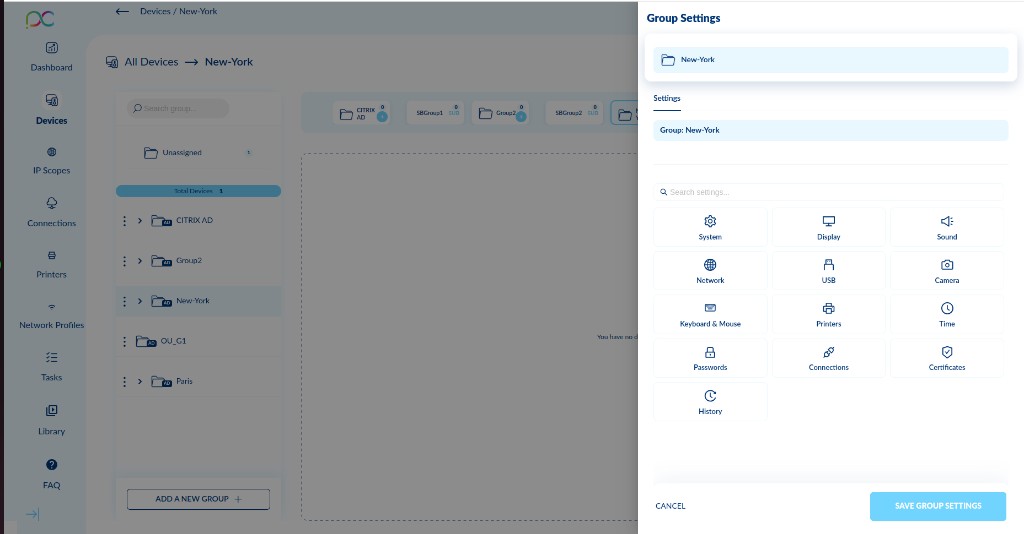
Click on any group in the Devices list to open the Group Settings panel. Settings configured here are pushed to all devices in the group and serve as the baseline configuration. Individual device settings can override group settings.
The panel contains the same categories as Device Settings, except Serial Ports which is device-specific only:
| Category | Description |
|---|---|
| System | OS settings, hostname policy, firmware, power management for the group |
| Display | Default resolution and multi-monitor layout for all group devices |
| Sound | Default audio output and input settings |
| Network | IP policy (DHCP / static template), DNS, proxy, Wi-Fi for the group |
| USB | USB policy — enable/disable, device whitelisting for all group members |
| Camera | Camera permission policy for the group |
| Keyboard & Mouse | Default keyboard layout and language for the group |
| Printers | Shared printer configuration for all group devices |
| Time | NTP server and timezone policy for the group |
| Passwords | Password and PIN policies applied to all group devices |
| Connections | Default connection profiles pushed to all group devices |
| Certificates | Trusted CA certificates deployed to the group |
| History | Audit log of group-level configuration changes |
After making changes, click Save Group Settings to push the configuration to all devices in the group.
Cliquez sur un groupe dans la liste des appareils pour ouvrir le panneau Paramètres du groupe. Les paramètres configurés ici sont poussés vers tous les appareils du groupe et servent de configuration de base. Les paramètres individuels d'un appareil peuvent remplacer ceux du groupe.
Le panneau contient les mêmes catégories que les paramètres d'appareil, à l'exception de Serial Ports qui est uniquement disponible au niveau de l'appareil :
| Catégorie | Description |
|---|---|
| System | Paramètres OS, politique de nom d'hôte, firmware, gestion de l'alimentation |
| Display | Résolution et disposition multi-écrans par défaut |
| Sound | Paramètres audio de sortie et d'entrée par défaut |
| Network | Politique IP (DHCP / modèle statique), DNS, proxy, Wi-Fi |
| USB | Politique USB — activation/désactivation, liste blanche de périphériques |
| Camera | Politique d'autorisation des caméras pour le groupe |
| Keyboard & Mouse | Disposition et langue du clavier par défaut |
| Printers | Configuration des imprimantes partagées pour tous les appareils du groupe |
| Time | Serveur NTP et politique de fuseau horaire |
| Passwords | Politiques de mots de passe et PIN pour tous les appareils du groupe |
| Connections | Profils de connexion par défaut poussés vers tous les appareils |
| Certificates | Certificats CA de confiance déployés sur le groupe |
| History | Journal d'audit des modifications de configuration au niveau du groupe |
Après les modifications, cliquez sur Save Group Settings pour pousser la configuration vers tous les appareils du groupe.
Klicken Sie auf eine Gruppe in der Geräteliste, um das Gruppeneinstellungen-Panel zu öffnen. Die Einstellungen gelten für alle Geräte der Gruppe. Kategorien: System, Display, Sound, Netzwerk, USB, Kamera, Tastatur & Maus, Drucker, Zeit, Passwörter, Verbindungen, Zertifikate, Verlauf. Klicken Sie auf Save Group Settings. Gerätespezifische Einstellungen überschreiben Gruppeneinstellungen.
Haga clic en un grupo para abrir el panel Configuración del grupo. Los ajustes se aplican a todos los dispositivos del grupo. Categorías: Sistema, Pantalla, Sonido, Red, USB, Cámara, Teclado y ratón, Impresoras, Hora, Contraseñas, Conexiones, Certificados, Historial. Pulse Save Group Settings para aplicar. Los ajustes de dispositivo individual tienen prioridad.
Clique num grupo para abrir o painel Definições do grupo. As definições aplicam-se a todos os dispositivos do grupo. Categorias: Sistema, Ecrã, Som, Rede, USB, Câmara, Teclado e rato, Impressoras, Hora, Palavras-passe, Ligações, Certificados, Histórico. Clique em Save Group Settings. As definições individuais do dispositivo têm prioridade.
Fare clic su un gruppo per aprire il pannello Impostazioni gruppo. Le impostazioni si applicano a tutti i dispositivi del gruppo. Categorie: Sistema, Display, Audio, Rete, USB, Fotocamera, Tastiera e mouse, Stampanti, Ora, Password, Connessioni, Certificati, Cronologia. Fare clic su Save Group Settings. Le impostazioni del singolo dispositivo hanno la precedenza.
לחצו על קבוצה כדי לפתוח את פאנל הגדרות קבוצה. ההגדרות חלות על כל המכשירים בקבוצה. קטגוריות: System, Display, Sound, Network, USB, Camera, Keyboard & Mouse, Printers, Time, Passwords, Connections, Certificates, History. לחצו על Save Group Settings. הגדרות ברמת המכשיר גוברות על הגדרות הקבוצה.
Touchscreen (Device Inventory)Écran tactile (inventaire de l'appareil)Touchscreen (Geräteinventar)Pantalla táctil (inventario del dispositivo)Ecrã tátil (inventário do dispositivo)Touchscreen (inventario dispositivo)מסך מגע (מלאי מכשיר)
Xcalibur Global reports whether a managed ThinX OS device has a touchscreen attached. The information is read-only inventory collected from the device and shown in the device information panel. Introduced in 4.3.10.
Navigation: Fleet Management (Devices) → select a device → Device Settings → Information panel (click Show details).
Xcalibur Global indique si un appareil ThinX OS géré dispose d'un écran tactile. Ces informations sont un inventaire en lecture seule collecté depuis l'appareil et affiché dans le panneau d'informations de l'appareil. Introduit dans la 4.3.10.
Navigation : Gestion du Parc (Appareils) → sélectionner un appareil → Device Settings → panneau d'informations (cliquer sur Show details).
Xcalibur Global meldet, ob ein verwaltetes ThinX OS-Gerät einen Touchscreen besitzt. Diese Information ist ein reines Leseinventar, das vom Gerät erfasst und im Geräteinformationsbereich angezeigt wird. Eingeführt in 4.3.10.
Navigation: Geräteverwaltung (Geräte) → Gerät auswählen → Device Settings → Informationsbereich (auf Show details klicken).
Xcalibur Global indica si un dispositivo ThinX OS gestionado tiene una pantalla táctil conectada. Esta información es un inventario de solo lectura recopilado desde el dispositivo y mostrado en el panel de información del dispositivo. Introducido en 4.3.10.
Navegación: Gestión del Parque (Dispositivos) → seleccionar un dispositivo → Device Settings → panel de información (clic en Show details).
O Xcalibur Global indica se um dispositivo ThinX OS gerido tem um ecrã tátil ligado. Esta informação é um inventário só de leitura recolhido a partir do dispositivo e apresentado no painel de informações do dispositivo. Introduzido na 4.3.10.
Navegação: Gestão da Frota (Dispositivos) → selecionar um dispositivo → Device Settings → painel de informações (clicar em Show details).
Xcalibur Global segnala se un dispositivo ThinX OS gestito ha un touchscreen collegato. Questa informazione è un inventario di sola lettura raccolto dal dispositivo e mostrato nel pannello informazioni del dispositivo. Introdotto nella 4.3.10.
Navigazione: Gestione Parco (Dispositivi) → selezionare un dispositivo → Device Settings → pannello informazioni (fare clic su Show details).
Xcalibur Global מדווח האם למכשיר ThinX OS מנוהל מחובר מסך מגע. המידע הוא מלאי לקריאה בלבד הנאסף מהמכשיר ומוצג בפאנל המידע של המכשיר. הוצג בגרסה 4.3.10.
ניווט: ניהול צי מכשירים (Devices) ← בחירת מכשיר ← Device Settings ← פאנל המידע (לחיצה על Show details).
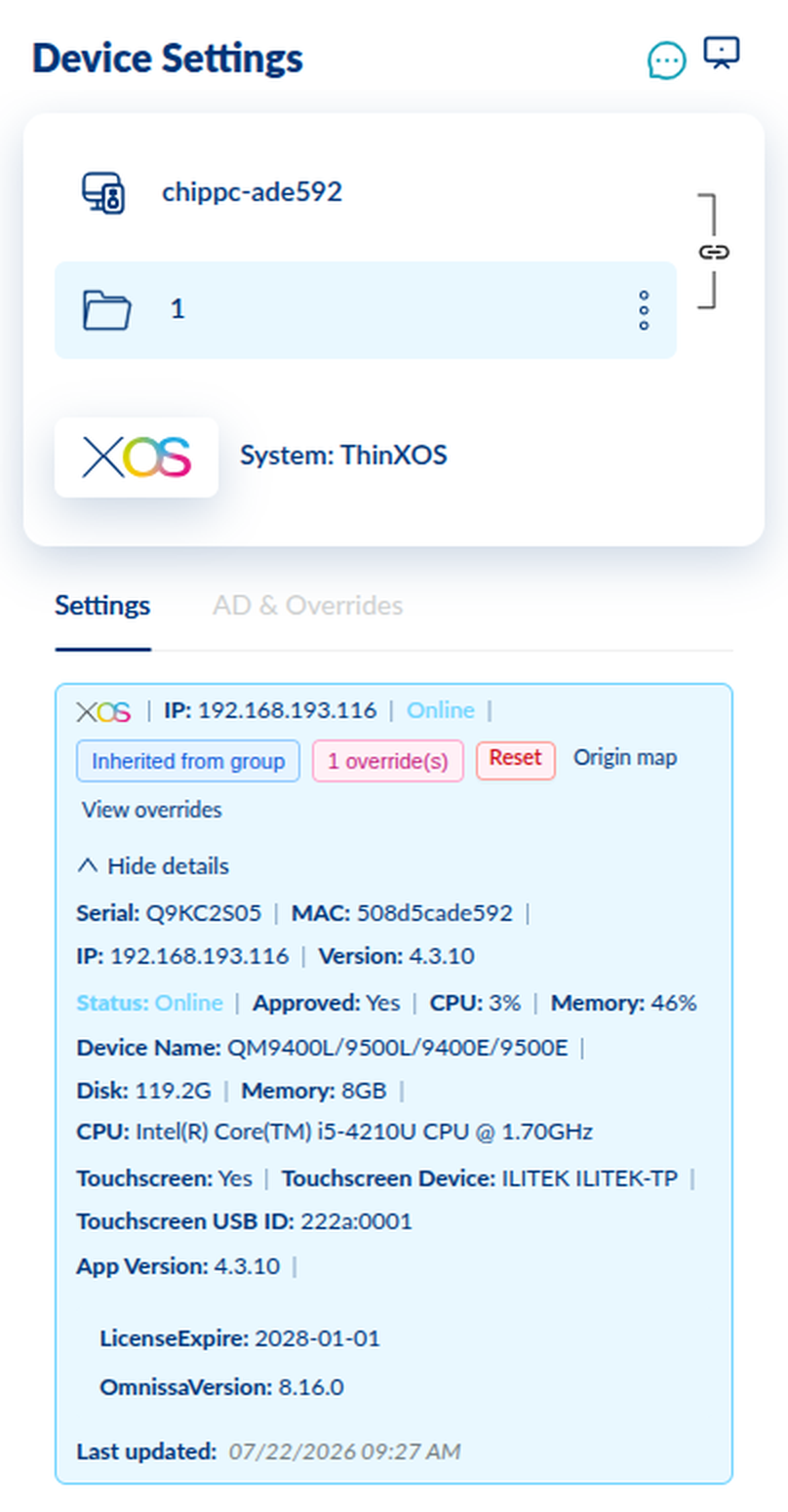
| Field | Champ | Feld | Campo | Campo | Campo | שדה | Description | Description | Beschreibung | Descripción | Descrição | Descrizione | תיאור |
|---|---|---|---|---|---|---|---|---|---|---|---|---|---|
| Touchscreen | Whether a touchscreen is detected on the device — Yes or No.Indique si un écran tactile est détecté sur l'appareil — Yes ou No.Ob am Gerät ein Touchscreen erkannt wurde — Yes oder No.Indica si se detecta una pantalla táctil en el dispositivo — Yes o No.Indica se é detetado um ecrã tátil no dispositivo — Yes ou No.Indica se sul dispositivo è rilevato un touchscreen — Yes o No.האם זוהה מסך מגע במכשיר — Yes או No. | ||||||||||||
| Touchscreen Device | The touchscreen device/model name as reported by the device. Shown only when a touchscreen is connected.Le nom du modèle/périphérique de l'écran tactile signalé par l'appareil. Affiché uniquement lorsqu'un écran tactile est connecté.Der vom Gerät gemeldete Touchscreen-Geräte-/Modellname. Wird nur angezeigt, wenn ein Touchscreen angeschlossen ist.El nombre del dispositivo/modelo de la pantalla táctil según lo indicado por el dispositivo. Se muestra solo cuando hay una pantalla táctil conectada.O nome do dispositivo/modelo do ecrã tátil, conforme reportado pelo dispositivo. Mostrado apenas quando há um ecrã tátil ligado.Il nome del dispositivo/modello del touchscreen segnalato dal dispositivo. Mostrato solo quando è collegato un touchscreen.שם המכשיר/הדגם של מסך המגע כפי שמדווח על ידי המכשיר. מוצג רק כאשר מסך מגע מחובר. | ||||||||||||
| Touchscreen USB ID | The USB vendor/product identifier (VID:PID) of the touchscreen. Shown only when a touchscreen is connected.L'identifiant fabricant/produit USB (VID:PID) de l'écran tactile. Affiché uniquement lorsqu'un écran tactile est connecté.Die USB-Hersteller-/Produktkennung (VID:PID) des Touchscreens. Wird nur angezeigt, wenn ein Touchscreen angeschlossen ist.El identificador de proveedor/producto USB (VID:PID) de la pantalla táctil. Se muestra solo cuando hay una pantalla táctil conectada.O identificador de fornecedor/produto USB (VID:PID) do ecrã tátil. Mostrado apenas quando há um ecrã tátil ligado.L'identificatore vendor/prodotto USB (VID:PID) del touchscreen. Mostrato solo quando è collegato un touchscreen.מזהה ה-USB של היצרן/המוצר (VID:PID) של מסך המגע. מוצג רק כאשר מסך מגע מחובר. |