Display Settings
Display Settings Paramètres d'affichage Anzeigeeinstellungen Configuración de pantalla Configurações de ecrã Impostazioni display הגדרות תצוגה
The Display panel controls all monitor and output settings. ThinX OS supports up to 2 simultaneous displays on compatible ChipPC hardware.
| Setting | Options / Notes |
|---|---|
| Resolution | Supports 1024×768 up to 3840×2160 (4K) depending on GPU |
| Refresh Rate | 60 Hz, 75 Hz, or auto-detect from EDID |
| Orientation | Landscape, Portrait, Inverted Landscape, Inverted Portrait |
| Display Mode | Single, Extend (dual-monitor), Mirror (clone) |
| Screen Sleep | DPMS timeout: 5 min, 30 min, 1h, 6h or Never |
| Turn Off | Screen power-off after: 1 min, 5 min, 30 min, 1h or Never |
| DPI Scaling | Auto, 96 dpi, 120 dpi, 144 dpi (for HiDPI monitors) |
Le panneau Affichage contrôle tous les paramètres de moniteur et de sortie. ThinX OS prend en charge jusqu'à 2 écrans simultanés sur le matériel ChipPC compatible.
| Paramètre | Options / Notes |
|---|---|
| Résolution | De 1024×768 à 3840×2160 (4K) selon le GPU |
| Taux de rafraîchissement | 60 Hz, 75 Hz ou détection automatique EDID |
| Orientation | Paysage, Portrait, Paysage inversé, Portrait inversé |
| Mode d'affichage | Simple, Extension (double écran), Miroir (clone) |
| Mise en veille écran | DPMS : 5 min, 30 min, 1h, 6h ou Jamais |
| Extinction | Extinction de l'écran après : 1 min, 5 min, 30 min, 1h ou Jamais |
לוח תצוגה שולט בכל הגדרות המסך. ThinX OS תומך עד 2 מסכים בו-זמנית בחומרת ChipPC תואמת.
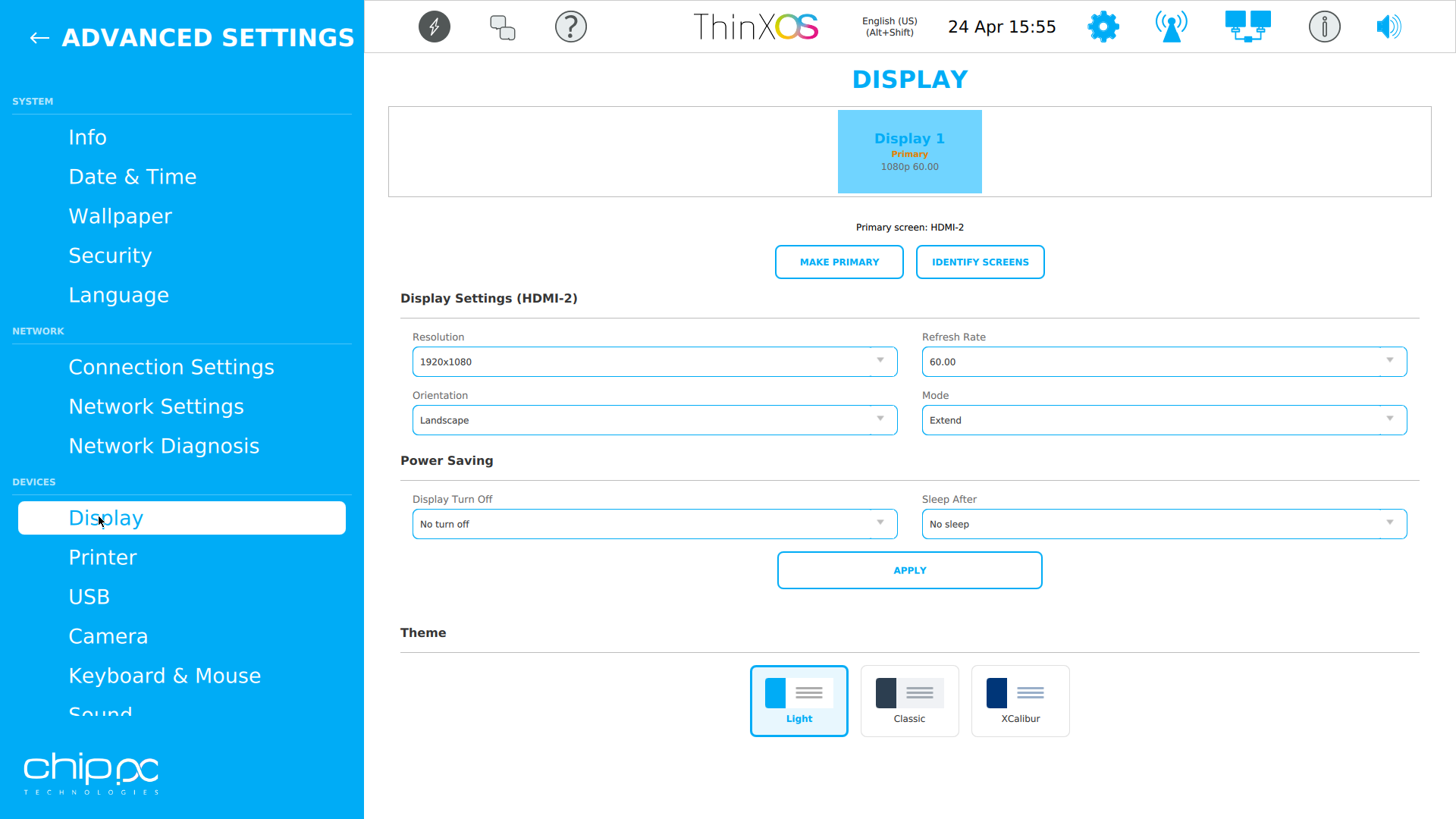
Primary display, Main window & Sidebar (4.3.16)
Écran primaire, fenêtre Main et Sidebar (4.3.16)
From 4.3.16, ThinX OS keeps UI placement consistent on multi-monitor setups:
- Make Primary — marks one connected display as the Primary monitor (Display Identity).
- Main window on Primary — the ThinX Main/desktop shell opens on the Primary display.
- Settings Menu on Primary — Settings opens on the Primary display with a safe inset so controls stay reachable.
- Sidebar leftmost — the session Sidebar stays on the leftmost monitor edge.
- Specific-monitor placement — connection windows can target a chosen monitor instead of always following the Primary.
Navigation: Settings → Display → select a monitor → Make Primary (when available). Connection monitor targeting is configured per connection in Xcalibur or local Connections.
Depuis la 4.3.16, ThinX OS stabilise le placement de l’interface en multi-écrans :
- Make Primary — définit l’écran Primary (Display Identity).
- Fenêtre Main sur Primary — le bureau ThinX s’ouvre sur l’écran Primary.
- Settings Menu sur Primary — les Paramètres s’ouvrent sur l’écran Primary avec une marge de sécurité.
- Sidebar à gauche — la barre de sessions reste sur le bord gauche de l’écran le plus à gauche.
- Placement moniteur spécifique — une connexion peut cibler un moniteur choisi.
Navigation : Paramètres → Affichage → sélectionner un moniteur → Make Primary.