License Upgrade
License Licence Lizenz Licencia Licença Licenza רישיון
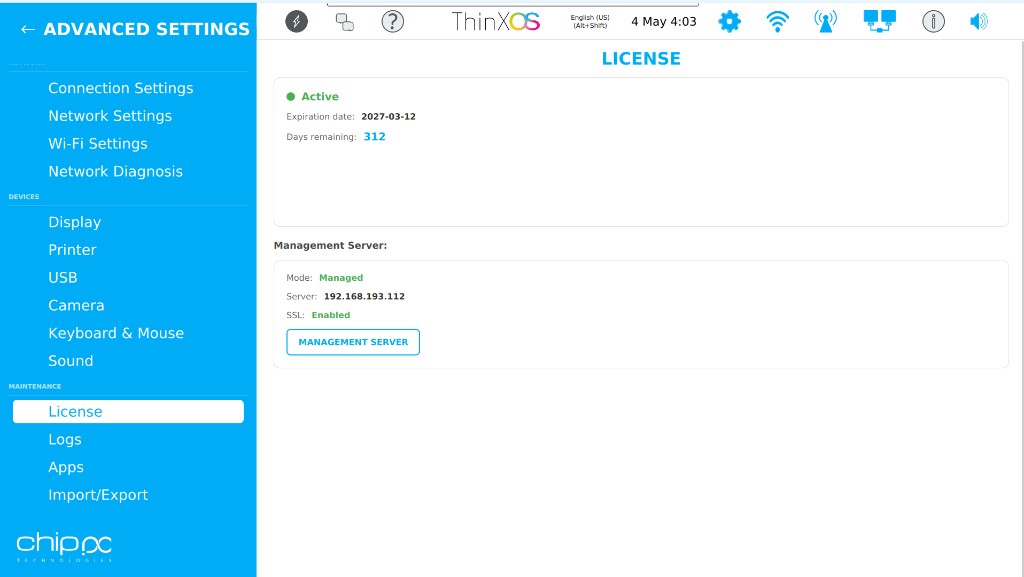
The License page displays the current license status of the thin client and allows configuring the management server connection. It is found under Advanced Settings → License.
| Field / Button | Description |
|---|---|
| License Status | Shows whether the device is Licensed, Unlicensed, or Pending approval from Xcalibur |
| License Type | Displays the active license tier (e.g., Standard, Enterprise) |
| Expiry Date | Date until which the current license is valid |
| Management Server | Address of the Xcalibur server managing this device |
| Reconnect | Forces the client to reconnect to the Xcalibur management server and re-request license approval |
| License Code | Enter a local license code (XXXX-XXXX-XXXX) for standalone (non-Xcalibur) activation |
| Apply | Submits the license code to the ChipPC license server (license.chippc.com) |
Advance expiry warning (30 days before)
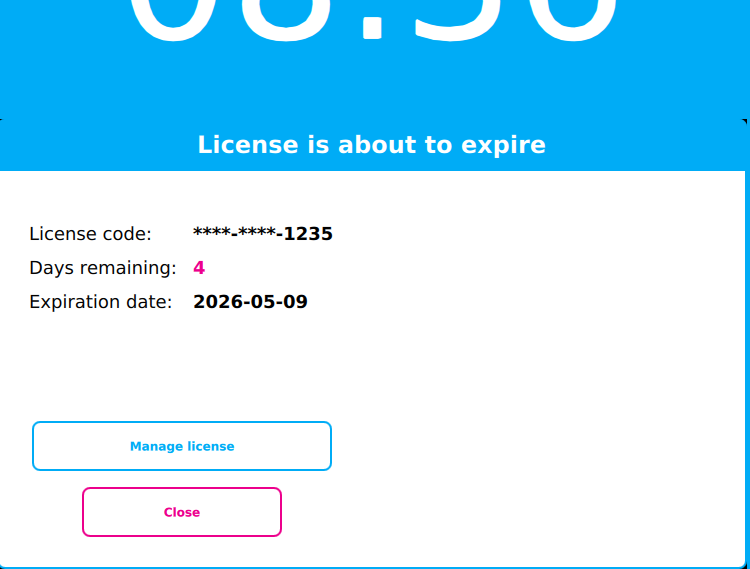
Starting 30 days before the license expiry date, ThinX OS automatically displays a "License is about to expire" warning dialog each time the device starts. The dialog shows:
- License code — the masked code of the current license
- Days remaining — number of days left (shown in orange/red as the date approaches)
- Expiration date — the exact date the license will expire
Two actions are available:
- Manage license — opens the license renewal dialog to enter a new code before expiry
- Close — dismisses the warning; the device continues to operate normally
What happens when a local license expires?
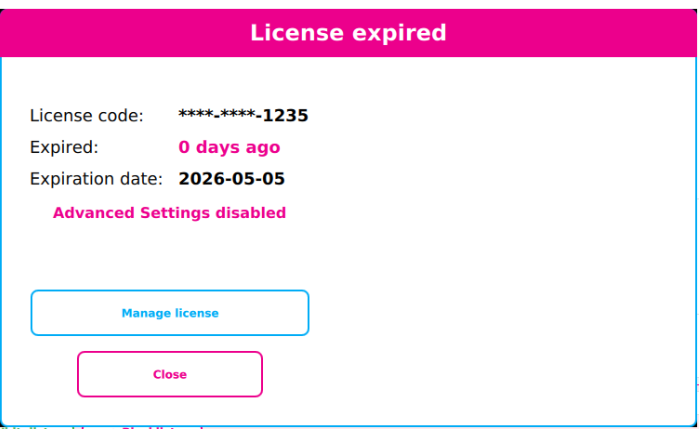
When a standalone (local) license expires, a "License expired" dialog is displayed automatically. The dialog shows:
- License code — the masked code of the expired license
- Expired — how many days ago it expired (e.g., "0 days ago")
- Expiration date — the exact date the license ended
- Advanced Settings disabled — access to the settings panel is blocked
Two actions are available:
- Manage license — opens the license renewal flow to enter a new code or reconnect to a server
- Close — dismisses the dialog; the device continues to operate normally
Renewing a local license (Manage License)
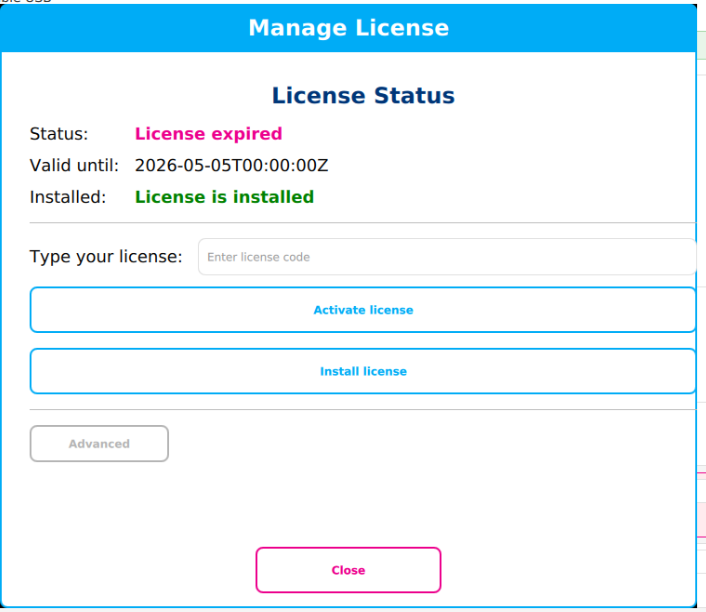
Clicking Manage license opens the Manage License dialog, which shows the current license status and allows entering a new license code:
| Field / Button | Description |
|---|---|
| Status | License expired — shown in red/pink when expired |
| Valid until | The exact expiry timestamp of the current license |
| Installed | License is installed — confirms a license file is present on the device |
| Type your license | Input field — enter the new license code received from ChipPC |
| Activate license | Activates the entered code online via the ChipPC license server (license.chippc.com). Requires an internet connection. |
| Install license | Installs a license from a local file (USB) — for offline environments |
| Advanced | Opens advanced options (server URL, proxy settings for license server connectivity) |
| Close | Closes the dialog without making changes |
license.chippc.com (HTTPS port 443). If no internet is available, use Install license with a license file on USB provided by ChipPC support.La page Licence affiche l'état actuel de la licence du terminal et permet de configurer la connexion au serveur de gestion. Elle se trouve sous Paramètres avancés → Licence.
| Champ / Bouton | Description |
|---|---|
| État de la licence | Indique si le terminal est Licencié, Non licencié ou en attente d'approbation Xcalibur |
| Type de licence | Affiche le niveau de licence actif (Standard, Enterprise…) |
| Date d'expiration | Date jusqu'à laquelle la licence est valide |
| Serveur de gestion | Adresse du serveur Xcalibur qui gère ce terminal |
| Reconnexion | Force la reconnexion au serveur Xcalibur pour redemander l'approbation de licence |
| Code de licence | Saisir un code local (XXXX-XXXX-XXXX) pour une activation autonome (sans Xcalibur) |
| Appliquer | Soumet le code au serveur de licences ChipPC (license.chippc.com) |
Que se passe-t-il à l'expiration d'une licence locale ?
Lorsqu'une licence locale (autonome) expire, une boîte de dialogue « License expired » s'affiche automatiquement avec le code masqué, le nombre de jours depuis l'expiration, la date d'expiration et le message Advanced Settings disabled.
- Manage license — ouvre le processus de renouvellement de licence
- Close — ferme la boîte de dialogue ; le terminal continue de fonctionner
Avertissement d'expiration anticipé (30 jours avant)
À partir de 30 jours avant la date d'expiration, ThinX OS affiche automatiquement le dialogue « License is about to expire » à chaque démarrage. Il indique le code masqué, le nombre de jours restants et la date d'expiration exacte. Cliquer sur Manage license pour renouveler avant l'expiration, ou sur Close pour ignorer.
Renouveler une licence locale (Manage License)
Cliquer sur Manage license ouvre le dialogue Manage License permettant de saisir un nouveau code :
| Champ / Bouton | Description |
|---|---|
| Status | License expired — affiché en rouge quand la licence est expirée |
| Valid until | Horodatage exact de l'expiration de la licence actuelle |
| Installed | License is installed — confirme qu'un fichier de licence est présent sur l'appareil |
| Type your license | Champ de saisie — entrer le nouveau code de licence reçu de ChipPC |
| Activate license | Active le code en ligne via le serveur de licences ChipPC. Nécessite une connexion internet. |
| Install license | Installe une licence depuis un fichier local (USB) — pour les environnements hors ligne |
| Advanced | Options avancées (URL du serveur, proxy pour la connectivité au serveur de licences) |
| Close | Ferme le dialogue sans modification |
license.chippc.com (HTTPS port 443). Sans internet, utiliser Install license avec un fichier licence sur USB fourni par le support ChipPC.Die Lizenz-Seite zeigt den aktuellen Lizenzstatus und ermöglicht die Konfiguration der Verwaltungsserververbindung. Bei abgelaufener lokaler Lizenz erscheint der Dialog „License expired" — Erweiterte Einstellungen werden gesperrt, bestehende Verbindungen bleiben jedoch aktiv.
La página de Licencia muestra el estado actual. Cuando una licencia local expira, aparece el diálogo "License expired" — el acceso a Configuración avanzada queda bloqueado, pero las conexiones existentes siguen funcionando.
A página de Licença apresenta o estado atual. Quando uma licença local expira, aparece a caixa de diálogo "License expired" — o acesso às Definições avançadas fica bloqueado, mas as ligações existentes continuam a funcionar.
La pagina Licenza mostra lo stato attuale. Quando una licenza locale scade, viene visualizzata la finestra "License expired" — l'accesso alle Impostazioni avanzate viene bloccato, ma le connessioni esistenti continuano a funzionare.
דף הרישיון מציג את מצב הרישיון הנוכחי של הטרמינל ומאפשר הגדרת חיבור לשרת הניהול.
מה קורה כאשר רישיון מקומי פג תוקפו?
כאשר רישיון מקומי (עצמאי) פג תוקפו, מופיעה אוטומטית תיבת הדו-שיח "License expired". התיבה מציגה:
- קוד הרישיון — הקוד המוסתר של הרישיון שפג תוקפו
- פג לפני — כמה ימים עברו מאז הפקיעה
- תאריך פקיעה — התאריך המדויק שבו הרישיון פקע
- Advanced Settings disabled — הגישה להגדרות מתקדמות חסומה
שתי אפשרויות פעולה:
- Manage license — פותח את תהליך חידוש הרישיון להזנת קוד חדש
- Close — סוגר את תיבת הדו-שיח; הטרמינל ממשיך לפעול
אזהרה מקדימה לפני פקיעת הרישיון (30 יום לפני)
החל מ30 יום לפני תאריך פקיעת הרישיון, ThinX OS מציג אוטומטית את תיבת הדו-שיח "License is about to expire" בכל הפעלת המכשיר. התיבה מציגה:
- קוד הרישיון — הקוד המוסתר של הרישיון הנוכחי
- ימים שנותרו — מספר הימים עד לפקיעה (מוצג בכתום/אדום ככל שמתקרב התאריך)
- תאריך פקיעה — התאריך המדויק שבו הרישיון יפקע
שתי אפשרויות פעולה:
- Manage license — פותח את חלון חידוש הרישיון להזנת קוד חדש לפני הפקיעה
- Close — סוגר את האזהרה; הטרמינל ממשיך לפעול כרגיל
חידוש רישיון מקומי (Manage License)
לחיצה על Manage license פותחת את חלון Manage License, המציג את מצב הרישיון הנוכחי ומאפשר הזנת קוד רישיון חדש:
| שדה / כפתור | תיאור |
|---|---|
| Status | License expired — מוצג באדום/ורוד כאשר הרישיון פג |
| Valid until | חותמת הזמן המדויקת של פקיעת הרישיון הנוכחי |
| Installed | License is installed — מאשר שקובץ רישיון קיים במכשיר |
| Type your license | שדה קלט — יש להזין את קוד הרישיון החדש שהתקבל מ-ChipPC |
| Activate license | מפעיל את הקוד שהוזן באינטרנט דרך שרת הרישיונות של ChipPC. דורש חיבור לאינטרנט. |
| Install license | מתקין רישיון מקובץ מקומי (USB) — לסביבות ללא גישה לאינטרנט |
| Advanced | פותח אפשרויות מתקדמות (כתובת שרת, הגדרות פרוקסי לשרת הרישיונות) |
| Close | סוגר את תיבת הדו-שיח ללא שינויים |
license.chippc.com (HTTPS פורט 443). אם אין גישה לאינטרנט, יש להשתמש ב-Install license עם קובץ רישיון ב-USB שסופק על ידי תמיכת ChipPC.